
How to Connect Claude Code to WordPress (Step-by-Step Guide 2026)
Want to write, edit and update your WordPress posts by simply asking? With Claude Code in the Claude desktop app, you can connect your WordPress site and tell Claude what to change in plain English: write a new post, fix prices in an old article, set Rank Math SEO fields, upload a featured image or tweak your theme’s CSS.
In this step-by-step guide, I’ll show you two ways to connect Claude Code to WordPress, with a screenshot-style image for every step. The whole setup takes between 2 and 15 minutes.
Two Ways to Connect Claude Code to WordPress
| Method | How it works | Best for | Setup time |
|---|---|---|---|
| 1. WordPress MCP Adapter | The official MCP Adapter plugin plus an application password gives Claude real WordPress tools. | Repeatable content work on hosts that allow the REST API | 10–15 min |
| 2. Browser pane | Claude opens your wp-admin in the desktop app’s built-in browser while you are signed in. | Any host, page builders like Divi or Elementor, visual checks | 2 min |
Start with Method 1. If your host, cache or firewall blocks it, Method 2 works almost everywhere.
What You Need Before You Start
- The Claude desktop app, signed in, with the Code tab open
- A WordPress site on version 6.9 or newer (the Abilities API is built in from 6.9)
- An Administrator account on that site
- Node.js 20 or newer on your computer (Method 1 only). Check it with
node -vin a terminal. - A fresh backup of your site. Most hosts offer a one-click backup.
Method 1: Connect with the WordPress MCP Adapter
MCP (Model Context Protocol) is the standard way AI tools like Claude talk to other apps. The official WordPress MCP Adapter plugin turns your site into an MCP server, and Claude Code connects to it with an application password.
Step 1: Install the MCP Adapter Plugin
- Download the latest zip from the WordPress/mcp-adapter releases page.
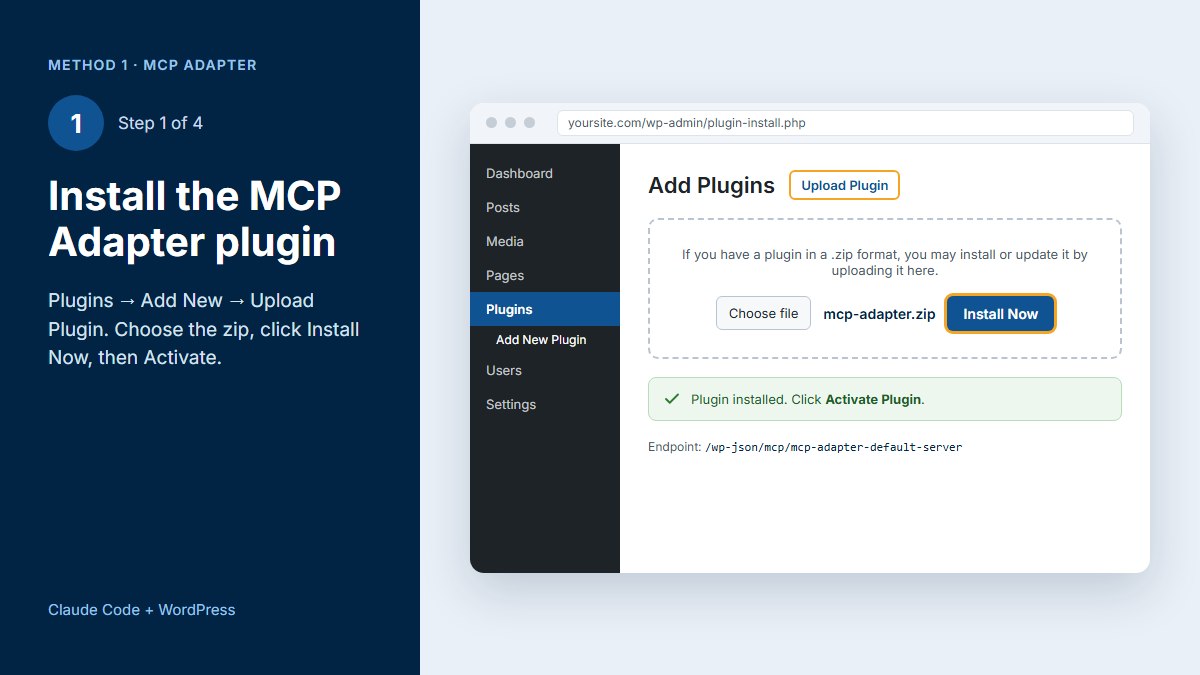
- In wp-admin, go to Plugins → Add New → Upload Plugin, choose the zip, click Install Now and then Activate.
- Your MCP endpoint is now
https://yoursite.com/wp-json/mcp/mcp-adapter-default-server.
Step 2: Create an Application Password
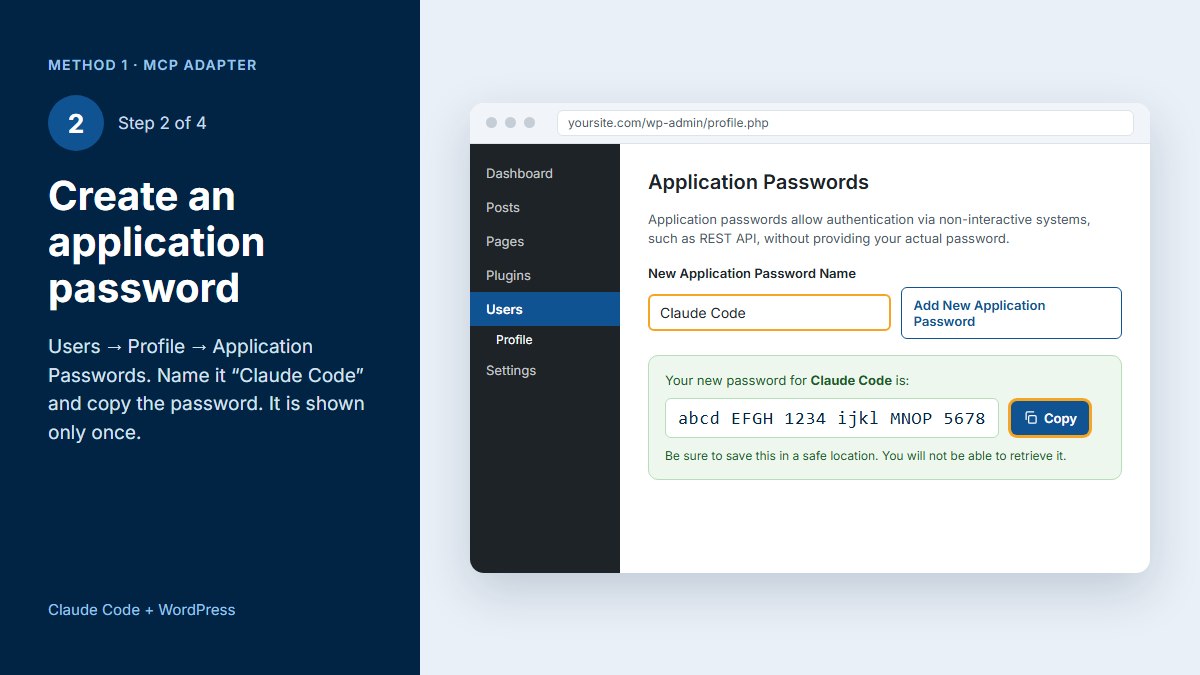
- Go to Users → Profile and scroll down to Application Passwords.
- Type a name such as Claude Code and click Add New Application Password.
- Copy the 24-character password. WordPress shows it only once.
Step 3: Add the WordPress Server to Claude Code
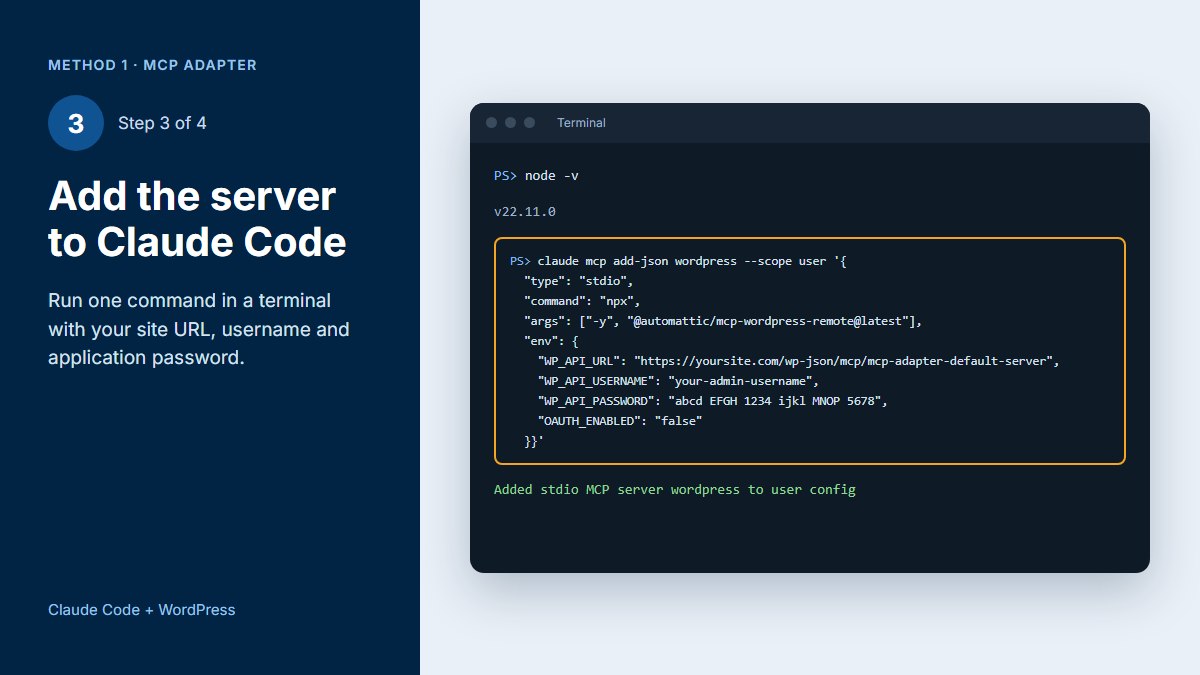
Open a terminal and run this one command. Replace the URL, username and password with your own.
claude mcp add-json wordpress --scope user '{"type":"stdio","command":"npx","args":["-y","@automattic/mcp-wordpress-remote@latest"],"env":{"WP_API_URL":"https://yoursite.com/wp-json/mcp/mcp-adapter-default-server","WP_API_USERNAME":"your-admin-username","WP_API_PASSWORD":"abcd EFGH 1234 ijkl MNOP 5678","OAUTH_ENABLED":"false"}}'--scope usermakes the server available in every project. Use--scope projectto save it in a.mcp.jsonfile for one folder only.- On Windows, if the server fails to start, use the full path to
npx.cmdas the command, for exampleC:\Program Files\nodejs\npx.cmd. - No terminal? Ask Claude in the Code tab: “Add a WordPress MCP server for https://yoursite.com” and paste the details when it asks.
Step 4: Restart and Test the Connection
- Start a new session in the Code tab (or restart the app) so the server loads.
- Type: “Use the wordpress MCP server and tell me my site name and WordPress version.”
- Approve the tool call. If Claude replies with your site details, you are connected.
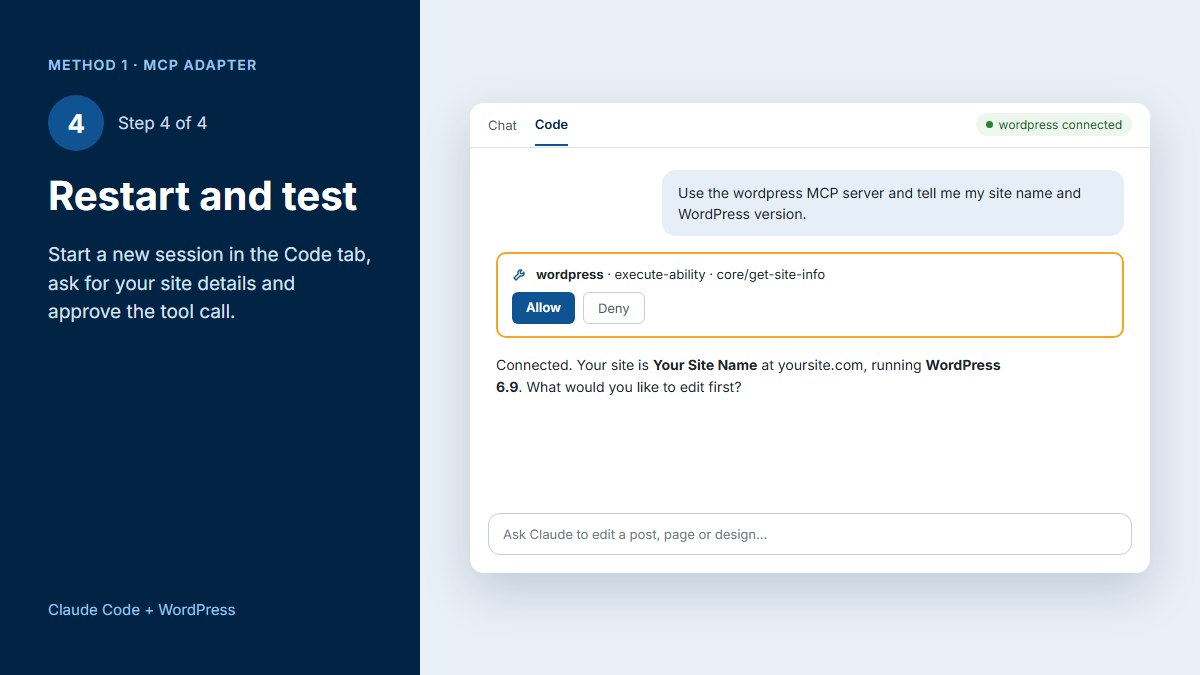
What Claude can do through this method depends on the abilities registered on your site. WordPress core adds a few basic ones and plugins add more. Ask Claude “list the WordPress abilities you can use” to see yours.
Method 2: Connect with the Browser Pane
The Claude desktop app has a built-in browser. You sign in to wp-admin yourself, and Claude works inside that session. Because it sees the same page you see, it can also check your design visually. This is the method I use on my own site, because it works with any host and with page builders like Divi.
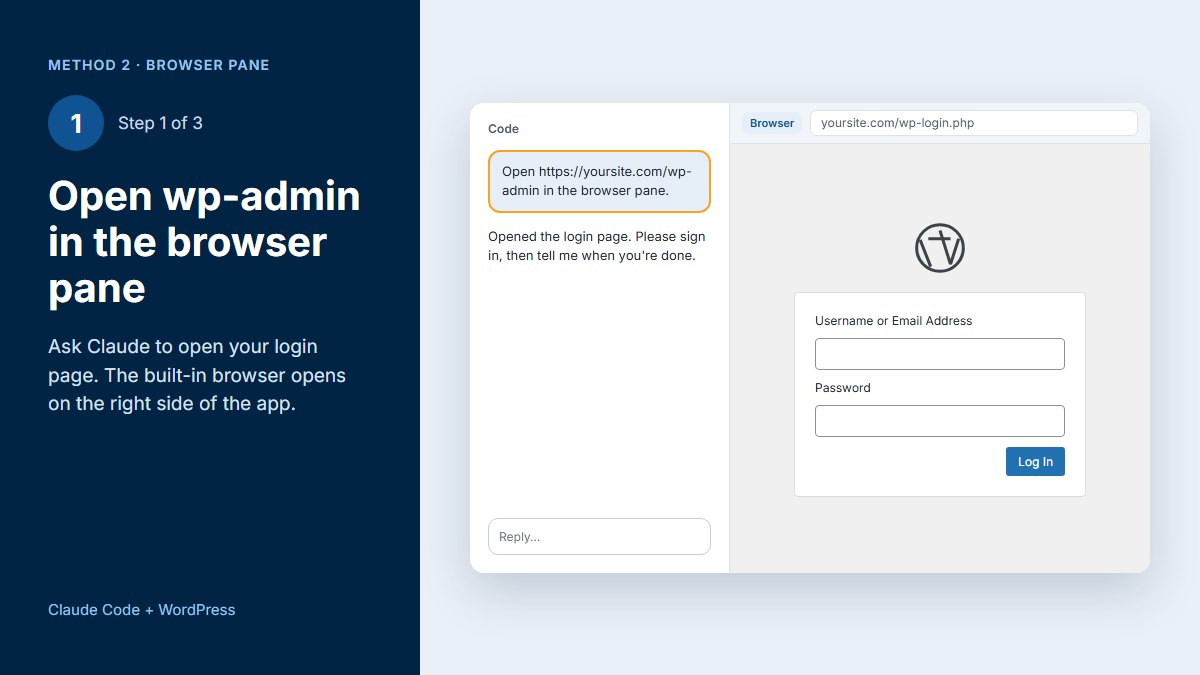
Step 1: Open wp-admin in the Browser Pane
In the Code tab, type: “Open https://yoursite.com/wp-admin in the browser pane.” The pane opens on the right side of the app.
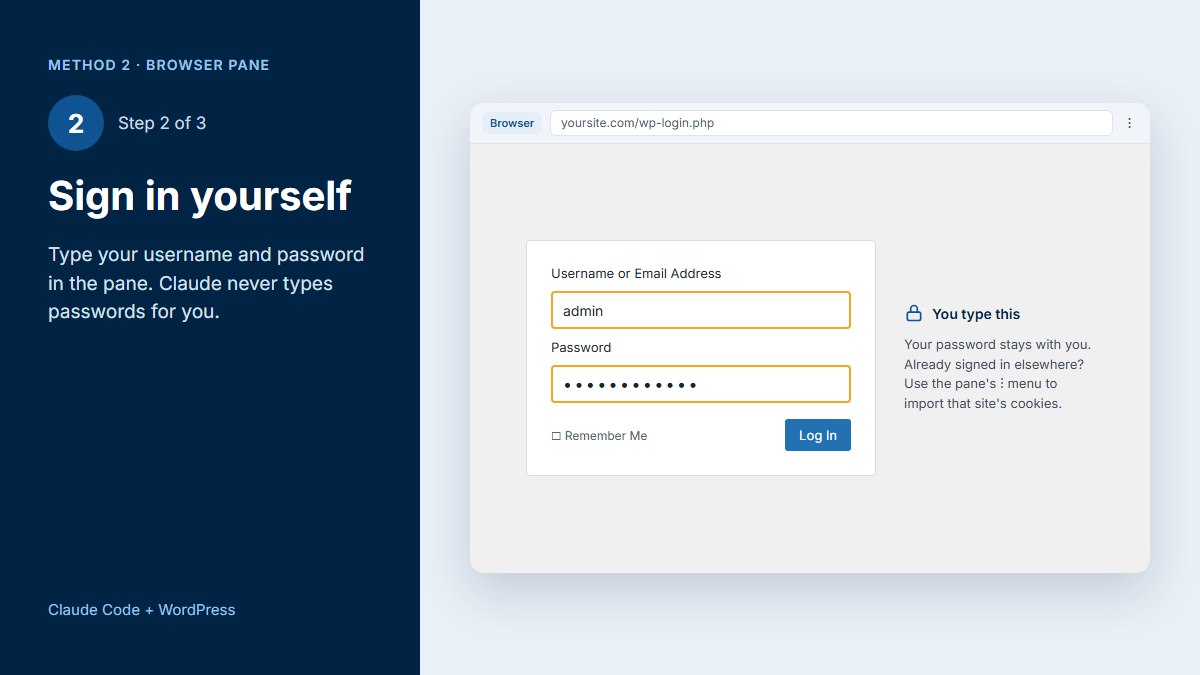
Step 2: Sign In Yourself
Type your username and password into the login form in the pane. Claude never types passwords for you. If you are already signed in to your site in your normal browser, you can import that site’s cookies from the pane’s ⋮ menu instead.
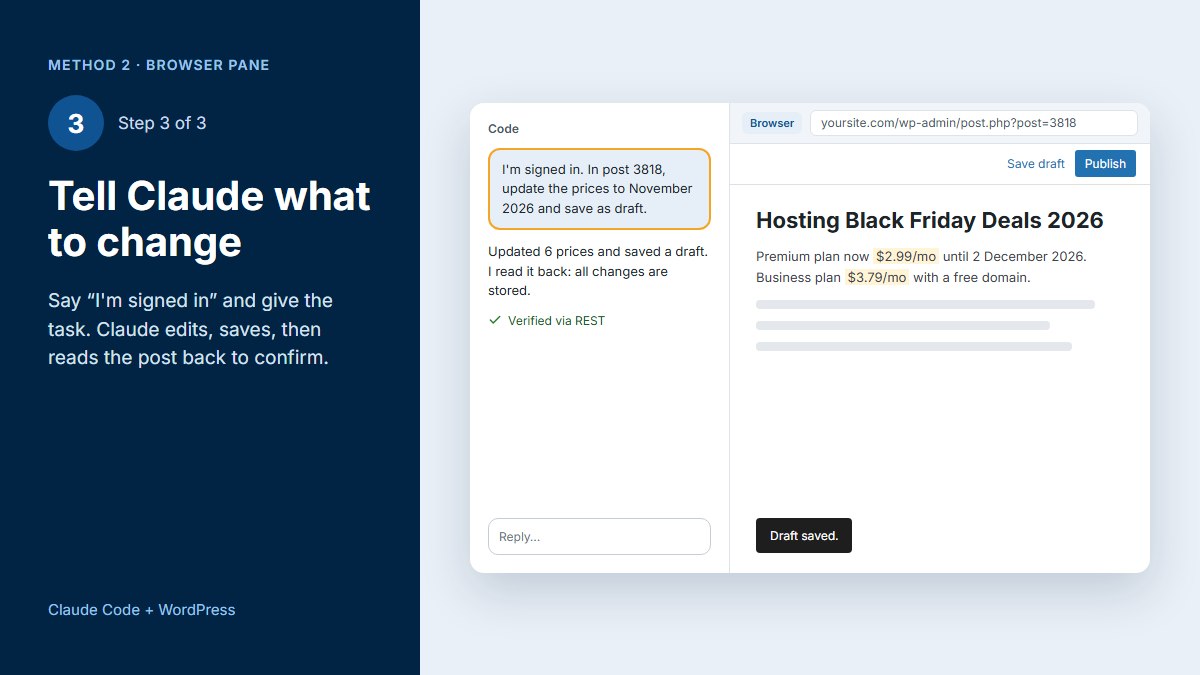
Step 3: Tell Claude What to Change
Once your dashboard shows, say “I’m signed in” and give your task. Claude works through the WordPress editor and the REST API inside your session, saves the change and then reads the post back to confirm it was stored.
Example Prompts to Edit Posts, Pages and Design
Give Claude one clear task at a time, name the post by title or ID, and ask it to save as a draft first.
| Task | Example prompt |
|---|---|
| Write a new post | “Write a 1,200-word post on best hosting for beginners, add an FAQ section with schema, and save it as a draft.” |
| Edit an existing post | “In post 1234, update all prices to November 2026, fix broken links and keep everything else unchanged.” |
| SEO fields | “Set the Rank Math title, meta description and focus keyword for this post.” |
| Featured image | “Design a 1200×675 featured image in Claude Design with my brand colors and set it as the featured image of this post.” |
| Bulk review | “List all posts from 2024 that mention Black Friday and show me which ones need updating. Don’t change anything yet.” |
| Design and CSS | “Make the header menu links navy and bold. Add the CSS to the child theme, then screenshot the homepage.” |
| Page builders | “Open the About page in the Divi builder and change the hero button text to Contact me.” (Use the browser pane for this.) |
| Plugins | “Check which plugins have updates and list them. Ask me before updating any.” |
After every change, ask Claude to read the post back or take a screenshot to confirm it saved correctly.
Troubleshooting Common Errors
| Problem | Likely cause | Fix |
|---|---|---|
HPE_INVALID_CHUNK_SIZE | A cache or proxy (LiteSpeed, Cloudflare) changes the streamed response | Exclude /wp-json/mcp/* from LiteSpeed Cache and add a Cloudflare Cache Rule to bypass it, or use Method 2 |
401 Unauthorized | Wrong username or application password, or a security plugin blocks it | Create a new application password and allow REST API logins in your security plugin |
404 on the endpoint | Plugin not active, or permalinks set to Plain | Activate MCP Adapter and set Settings → Permalinks to Post name |
| Server never starts on Windows | The app can’t find npx | Use the full path to npx.cmd as the command |
| Connected, but no tool to edit posts | No content abilities are registered | Add a plugin that registers post abilities, or use Method 2 |
Safety Tips
- Back up first and test big changes on a staging site.
- Drafts before publishing: ask Claude to save as a draft, review it, then publish it yourself.
- Keep the application password private. Never commit a
.mcp.jsonfile with a password to Git. Revoke it under Users → Profile if it leaks. - Use a dedicated user with the Editor role if Claude only needs to manage content.
- Approve tool calls on live sites instead of letting everything run automatically.
Frequently Asked Questions
Can Claude Code edit WordPress posts directly?
Yes. Through the WordPress MCP Adapter or the browser pane in the Claude desktop app, Claude Code can create, edit and update posts, pages, SEO fields and media on your WordPress site.
Is it safe to connect Claude to my WordPress site?
It is safe if you use an application password instead of your main password, approve each tool call, save changes as drafts first and keep a recent backup. You can revoke the application password at any time.
Does it work with Divi or Elementor?
Yes. Use the browser pane method for page builders, because Claude can see and work in the builder the same way you do.
Do I need coding skills?
No. You need to run one command for Method 1, and Method 2 needs no commands at all. After that you give Claude instructions in plain English.
Why does the MCP connection fail with HPE_INVALID_CHUNK_SIZE?
A server cache or CDN such as LiteSpeed Cache or Cloudflare is changing the streamed response. Exclude the /wp-json/mcp/ path from caching, or use the browser pane method instead.
Final Thoughts
Connecting Claude Code to WordPress turns routine site work into a short conversation. Use the MCP Adapter if your host allows it, and keep the browser pane method for page builders and visual changes. Start with drafts, check every change, and you will save hours on content updates every month.
Recent Comments