by Manjay Ray | Nov 26, 2026 | AI
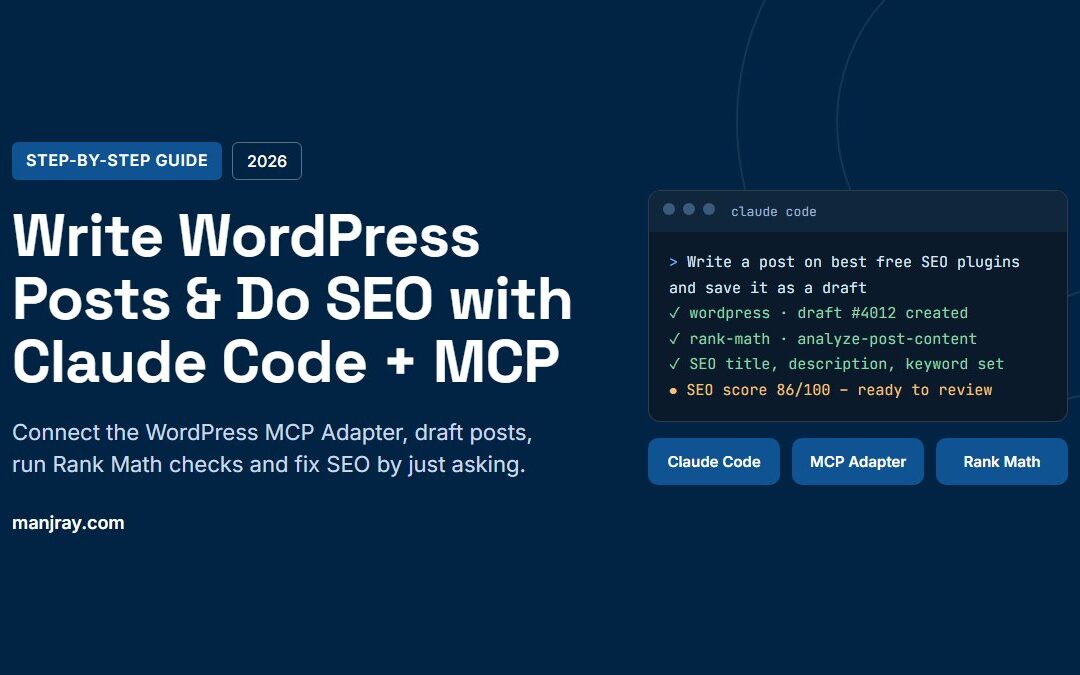
Writing a blog post, then filling in the SEO title, meta description, focus keyword, slug, alt text and internal links, can take an hour or more. With a Claude Code WordPress MCP setup, you describe the post in plain English and Claude does the work: it reads your Search Console keywords, writes the post, creates the draft in WordPress, runs Rank Math’s on-page SEO tests and fixes what fails.
In this guide I’ll show you the exact workflow I use on manjray.com, step by step, with a screenshot for every step. If you haven’t connected Claude Code to WordPress yet, start with my guide to connecting Claude Code to WordPress. Step 1 below is a short recap.
What You Can Do with Claude Code WordPress MCP
| Task | How Claude does it | Time |
|---|
| Find a post topic from real keyword data | Rank Math ability get-top-keywords (Search Console) | 1 minute |
| Write a full post with headings, table and FAQ | Writes an HTML file in your project folder | 2–4 minutes |
| Create the draft, category and featured image | WordPress REST API with your application password | 1 minute |
| Run on-page SEO tests | Rank Math ability analyze-post-content | 1 minute |
| Set SEO title, description and focus keyword | Rank Math updateMeta endpoint | 1 minute |
| Audit the whole site | audit-site-seo, get-seo-scores, get-link-report | 2 minutes |
What You Need Before You Start
- The Claude desktop app with the Code tab (or Claude Code in a terminal)
- A WordPress site on version 6.9 or newer, where the Abilities API is built in
- The official WordPress MCP Adapter plugin, installed and active
- A recent version of Rank Math SEO. It registers its SEO tools as abilities that Claude can use. Connect Search Console in Rank Math if you want keyword data.
- An application password for an Administrator or Editor account (Users → Profile → Application Passwords)
- Node.js 20+ on your computer, and a fresh site backup
Step 1: Connect the WordPress MCP Server to Claude Code
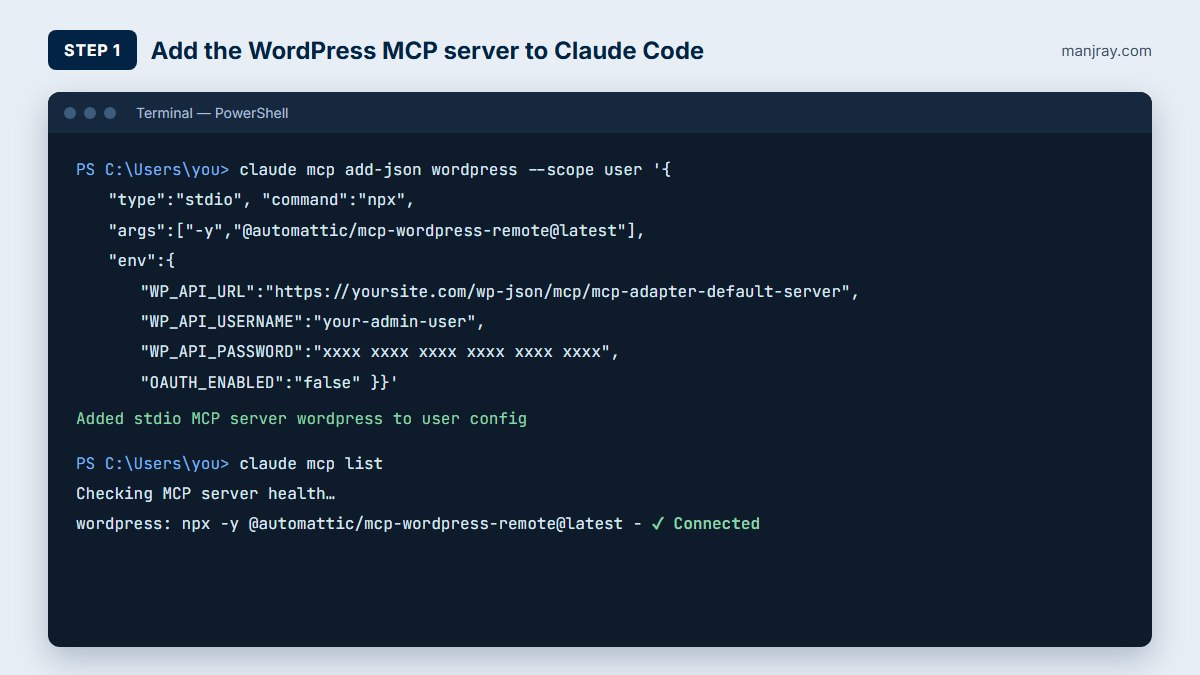
Open a terminal and add your site as an MCP server. Replace the URL, username and application password with your own:
claude mcp add-json wordpress --scope user '{"type":"stdio","command":"npx","args":["-y","@automattic/mcp-wordpress-remote@latest"],"env":{"WP_API_URL":"https://yoursite.com/wp-json/mcp/mcp-adapter-default-server","WP_API_USERNAME":"your-admin-user","WP_API_PASSWORD":"xxxx xxxx xxxx xxxx xxxx xxxx","OAUTH_ENABLED":"false"}}'
Then run claude mcp list. You should see wordpress: ✓ Connected. Start a new session in the Code tab so the server loads.
Claude will also use the WordPress REST API to create posts, so save the same login as two environment variables. In PowerShell:
setx WP_USER "your-admin-user"
setx WP_APP_PASSWORD "xxxx xxxx xxxx xxxx xxxx xxxx"
Restart the Claude app after setx so it picks up the new variables. This keeps the password out of your chat and out of your project files.
Step 2: Check Which WordPress Abilities Claude Can Use
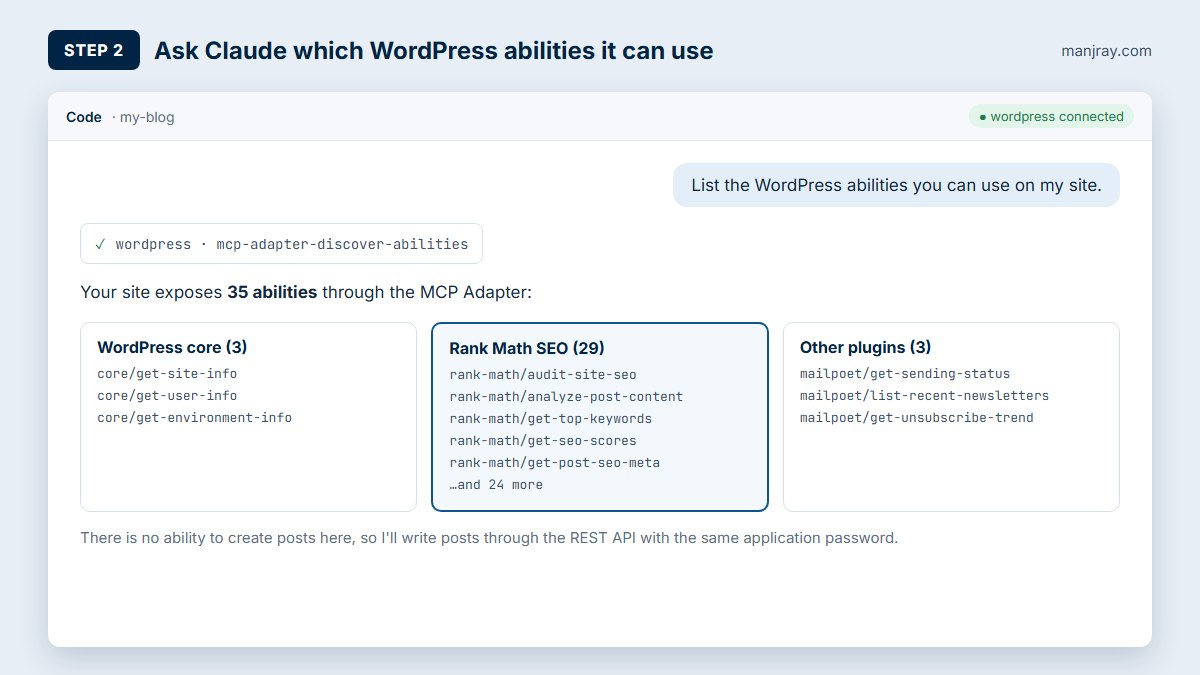
The MCP Adapter only gives Claude the abilities your site registers. WordPress core adds a few, and plugins like Rank Math add more. In the Code tab, type:
List the WordPress abilities you can use on my site.
On my site Claude found 35 abilities: 3 from WordPress core, 29 from Rank Math and 3 from MailPoet. Rank Math’s abilities are the SEO toolbox for this whole guide.
Important: the MCP Adapter alone has no ability to create or edit posts. That’s fine. Claude Code can also run commands, so it creates posts through the normal WordPress REST API with the same application password. MCP handles the SEO intelligence, and the REST API does the writing.
Step 3: Find a Post Topic from Your Search Console Keywords
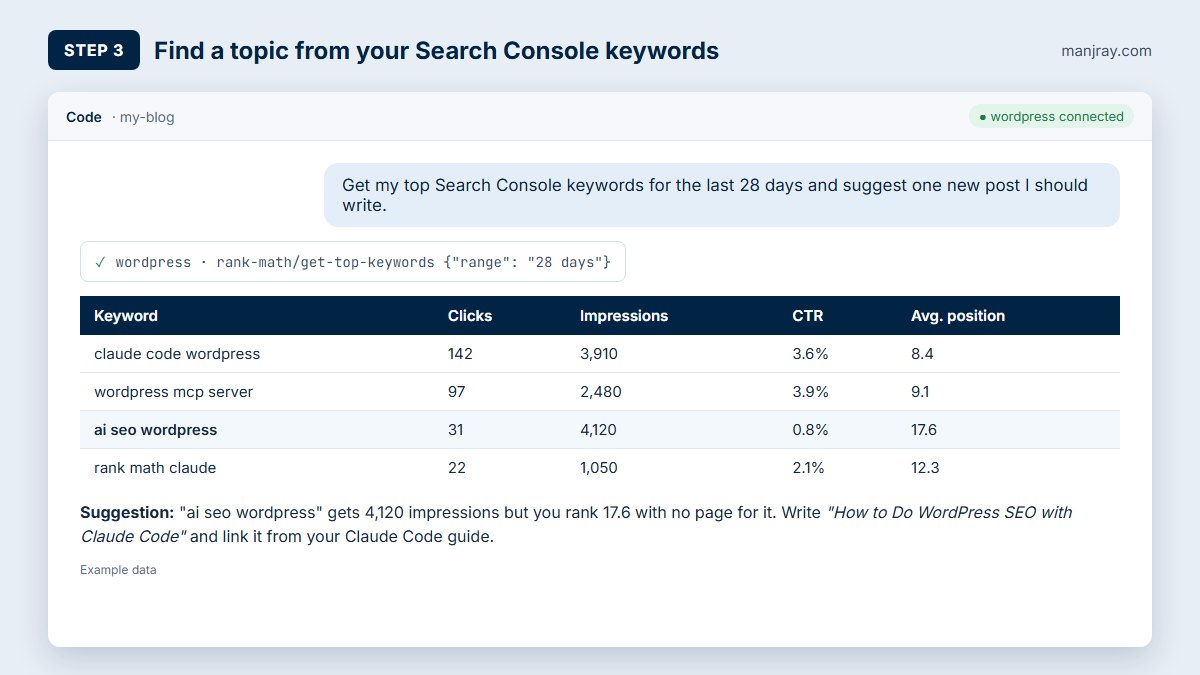
Don’t guess what to write. Ask Claude to look at your real search data:
Get my top Search Console keywords for the last 28 days and suggest one new post I should write.
Claude calls Rank Math’s get-top-keywords ability and looks for keywords with many impressions but a weak position and no dedicated page. Those are your easiest wins. Pick the topic and the focus keyword before moving on.
Step 4: Ask Claude to Write the Post
Give Claude a clear brief: title, focus keyword, length, structure and where to save the file. For example:
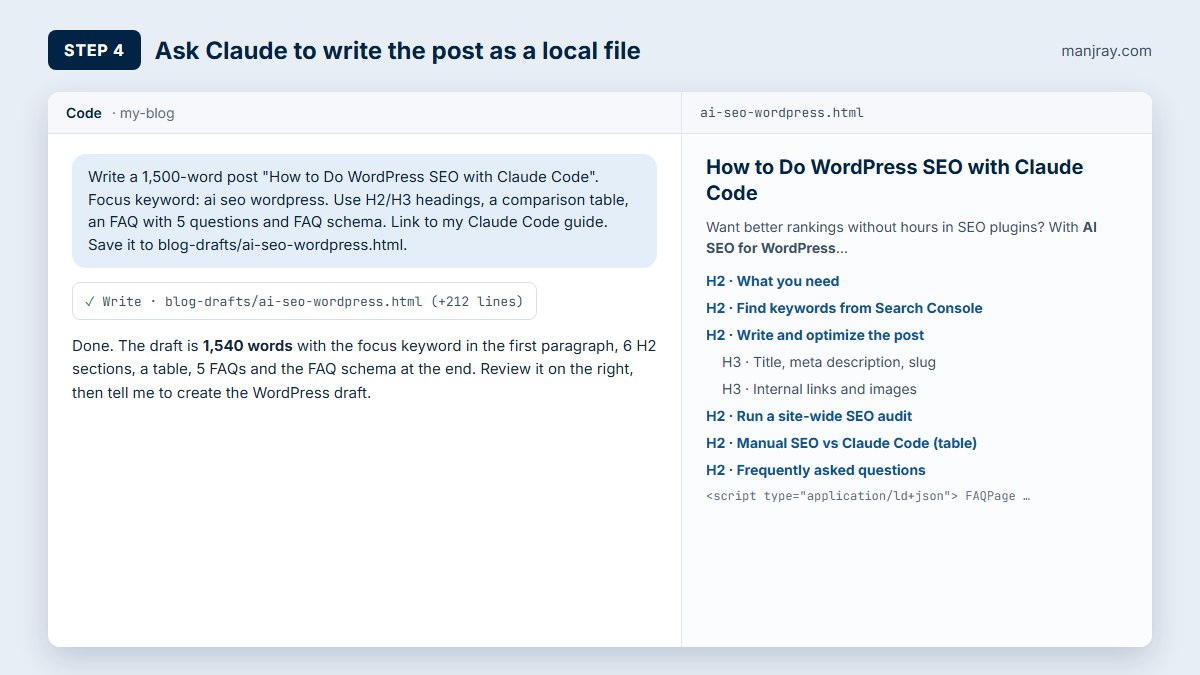
Write a 1,500-word post “How to Do WordPress SEO with Claude Code”. Focus keyword: ai seo wordpress. Use H2/H3 headings, a comparison table, an FAQ with 5 questions and FAQ schema. Link to my Claude Code guide. Save it to blog-drafts/ai-seo-wordpress.html.
Claude writes the post as an HTML file in your project folder, so you can read it and ask for changes before anything touches your site. Ask for edits in plain English, such as “make the intro shorter” or “add a section on internal links”.
Tip: save your site rules in a CLAUDE.md file in the project folder: brand colors, categories, affiliate link rules, tone of voice, and “always save as draft”. Claude reads it in every session, so every post follows the same rules without you repeating them.
Step 5: Create the Draft in WordPress
When the post looks good, tell Claude:
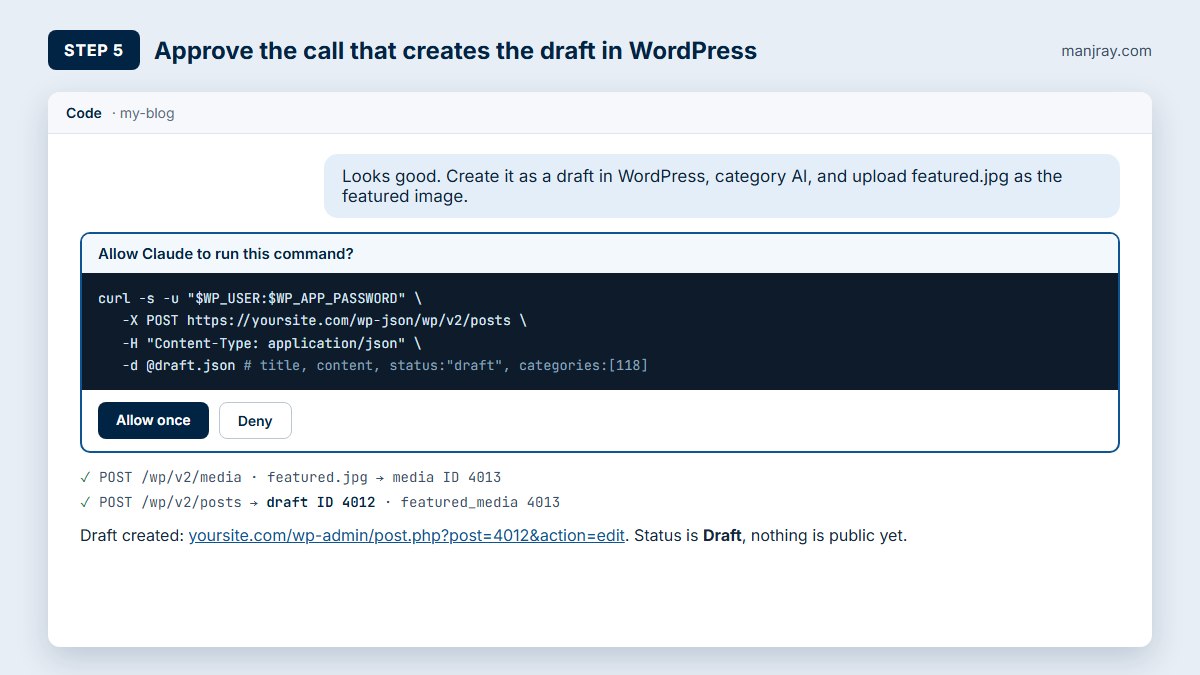
Looks good. Create it as a draft in WordPress, category AI, and upload featured.jpg as the featured image.
Claude uploads the image to /wp-json/wp/v2/media, then creates the post at /wp-json/wp/v2/posts with "status": "draft". Claude Code asks for your approval before it runs each command. Read the command, then click Allow. Claude replies with the draft’s ID and edit link.
Need a featured image? Ask Claude to design one in Claude Design at 1200×675 with your brand colors, then upload it in the same step.
Step 6: Run Rank Math’s On-Page SEO Analysis
Now check the draft the same way Rank Math does in the editor:
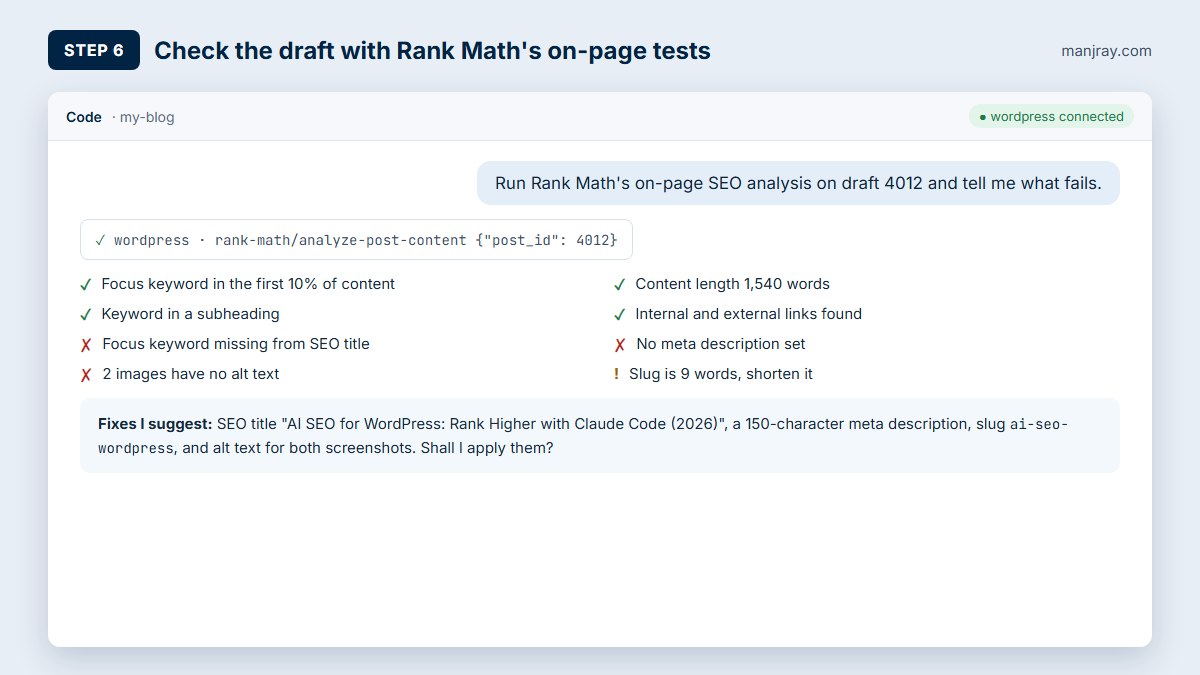
Run Rank Math’s on-page SEO analysis on draft 4012 and tell me what fails.
The analyze-post-content ability returns the post’s content, headings, images, links and the list of Rank Math tests. Claude checks each test and tells you what passes, what fails and how to fix it, for example a missing meta description, no keyword in the SEO title, images without alt text or a slug that is too long.
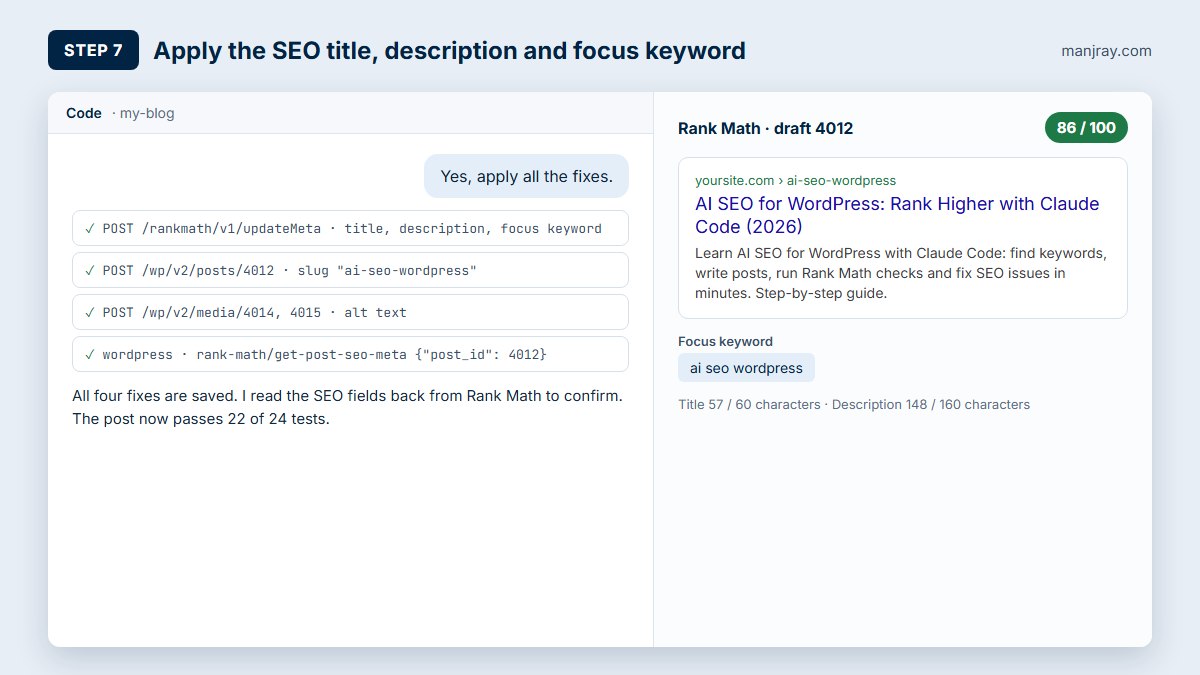
Reply “Yes, apply all the fixes.” Claude then:
- Saves the SEO title, meta description and focus keyword through Rank Math’s
/wp-json/rankmath/v1/updateMeta endpoint (fields rank_math_title, rank_math_description and rank_math_focus_keyword)
- Shortens the slug with the posts endpoint
- Adds alt text to each image through the media endpoint
- Reads the values back with the
get-post-seo-meta ability to confirm they were saved
Keep the SEO title under 60 characters and the meta description under 160, with the focus keyword near the start of both.
Step 8: Audit Your Whole Site and Fix Weak Posts
The same connection works for your old content too. Ask:
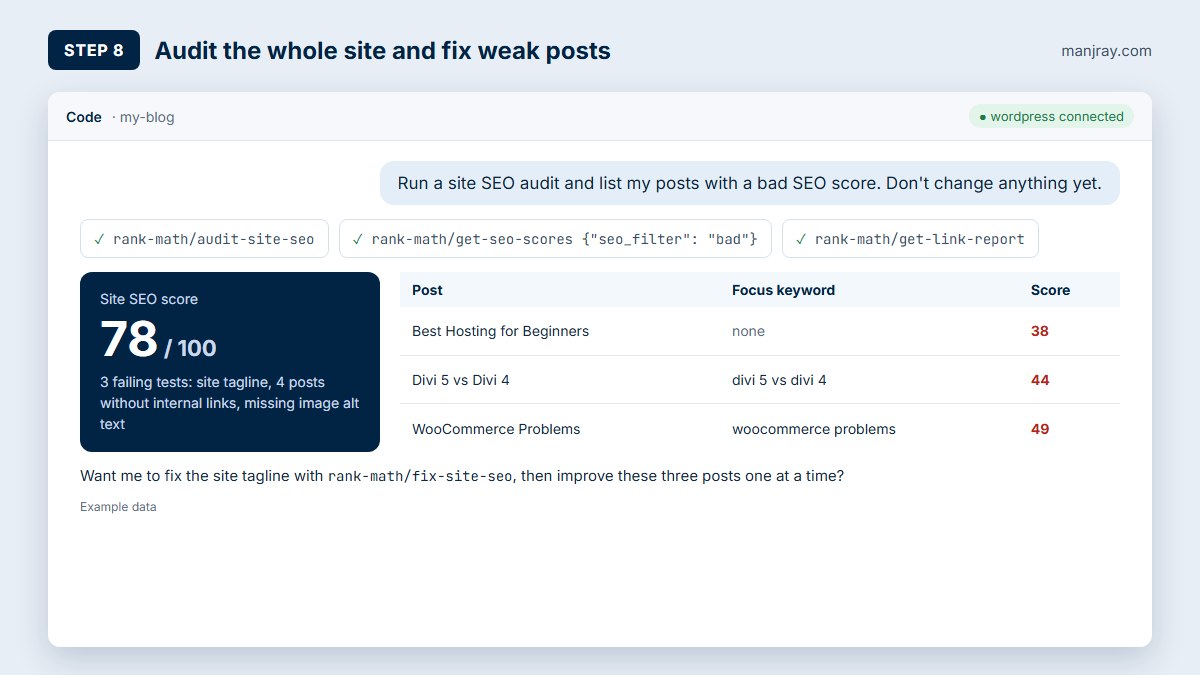
Run a site SEO audit and list my posts with a bad SEO score. Don’t change anything yet.
Claude runs audit-site-seo for the site-wide score, get-seo-scores with the “bad” filter for weak posts, and get-link-report for posts with no internal links. Some site-wide issues, like a missing tagline, can be fixed with fix-site-seo. Then improve weak posts one at a time with Steps 6 and 7.
Step 9: Review the Draft and Publish It Yourself
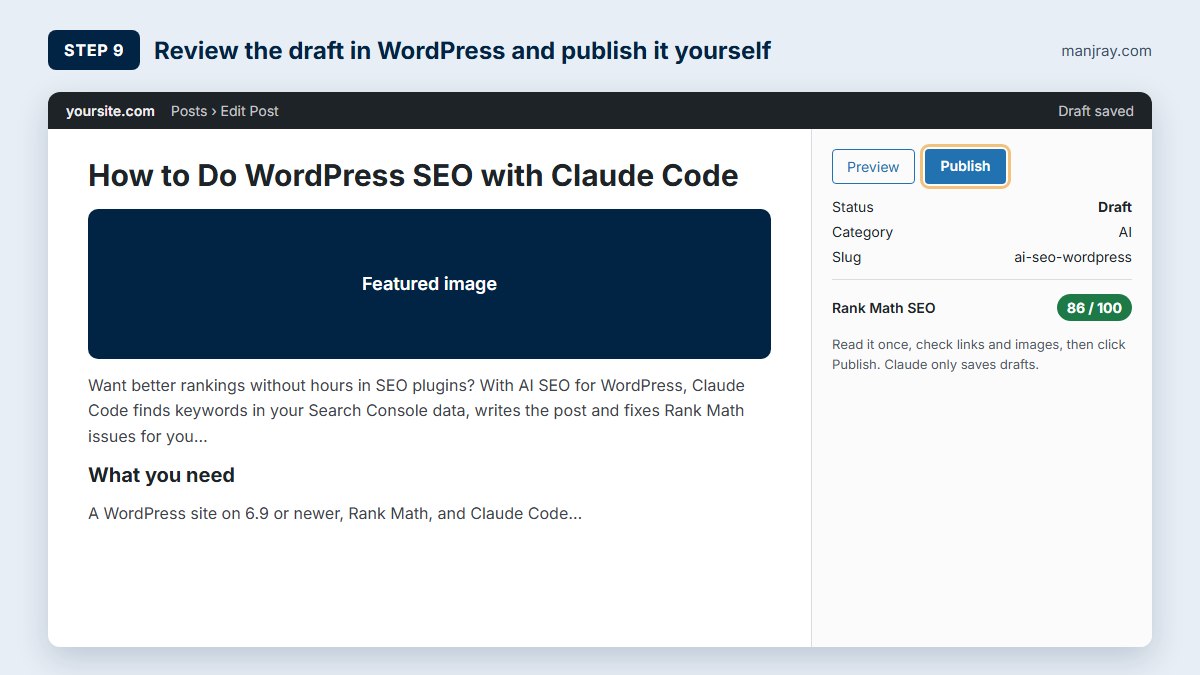
Open the draft in wp-admin. Read it once, click every link, check the images on mobile with Preview, and make sure the Rank Math score looks right. Then click Publish. I recommend keeping this last click for yourself: Claude saves drafts, you decide what goes live.
Copy-Paste Prompts for Posts and SEO
| Task | Prompt |
|---|
| Topic ideas | “Find keywords where I rank 8–20 with over 1,000 impressions and no dedicated post.” |
| New post | “Write a 1,500-word post on [topic], focus keyword [keyword], with a table, 5 FAQs and FAQ schema. Save it as a draft in category [name].” |
| Update an old post | “Update post [ID] for 2026: refresh prices and dates, fix broken links, keep everything else. Save as a new draft revision.” |
| On-page SEO | “Run analyze-post-content on post [ID] and fix every failing test.” |
| Missing keywords | “List posts with no focus keyword and suggest one for each. Don’t save until I approve.” |
| Internal links | “Find posts with no internal links and suggest 2 relevant links for each.” |
| Technical check | “Show my sitemap status, robots.txt and the top 404 errors.” |
Troubleshooting
| Problem | Fix |
|---|
| No Rank Math abilities in Step 2 | Update Rank Math to the latest version and make sure the MCP Adapter plugin is active. |
get-top-keywords returns nothing | Connect Google Search Console in Rank Math → Analytics and wait for data to sync. |
401 when creating a post | Check WP_USER and WP_APP_PASSWORD, restart the app after setx, and allow REST API logins in your security plugin. |
HPE_INVALID_CHUNK_SIZE | Your cache or CDN changes the response. Exclude /wp-json/mcp/* from LiteSpeed Cache and Cloudflare caching. |
| Inline CSS in the post breaks | Ask Claude to use inline styles on elements instead of a <style> block, or keep the CSS on one line. |
Safety Tips
- Always save as draft. Put “never publish, only save drafts” in your
CLAUDE.md.
- Approve each command on a live site, and read what it will change.
- Use a separate application password for Claude and revoke it from Users → Profile if it leaks.
- Back up before bulk changes, such as updating many old posts at once.
- Check facts yourself. Claude writes well, but prices, dates and product details need your review.
Frequently Asked Questions
Can Claude Code create WordPress posts through MCP?
The official WordPress MCP Adapter only exposes the abilities your site registers, and core WordPress does not register a create-post ability. Claude Code creates the post through the WordPress REST API with the same application password, and uses MCP abilities such as Rank Math’s for SEO checks.
Does this work with Rank Math?
Yes. Recent versions of Rank Math register about 29 abilities, including keyword data from Search Console, on-page SEO analysis, site audits, SEO scores and link reports, and Claude Code can use all of them through the MCP Adapter.
Does it work with other SEO plugins like Yoast?
Yes for writing and creating posts. For the SEO tools, ask Claude to list your abilities: if your SEO plugin does not register abilities, Claude can still check titles, descriptions, headings and links itself, but you will not get plugin features like Rank Math site audits or Search Console keywords.
Is it safe to let Claude edit my live site?
Yes, if you use an application password, approve each command, save everything as a draft and publish it yourself. Keep a recent backup before bulk changes.
Do I need to know how to code?
No. You run one command to connect the MCP server and two to save your login. After that you give Claude instructions in plain English.
Final Thoughts
A Claude Code WordPress MCP workflow turns a full post, from keyword research to a draft with a high Rank Math score, into a short conversation. Let MCP and Rank Math handle the SEO checks, let the REST API create the draft, and keep the final review and the Publish button for yourself. Start with one post this week and you’ll see how much time it saves.
by Manjay Ray | Nov 24, 2026 | WordPress Plugins
Deal status · checked 24 November 2026
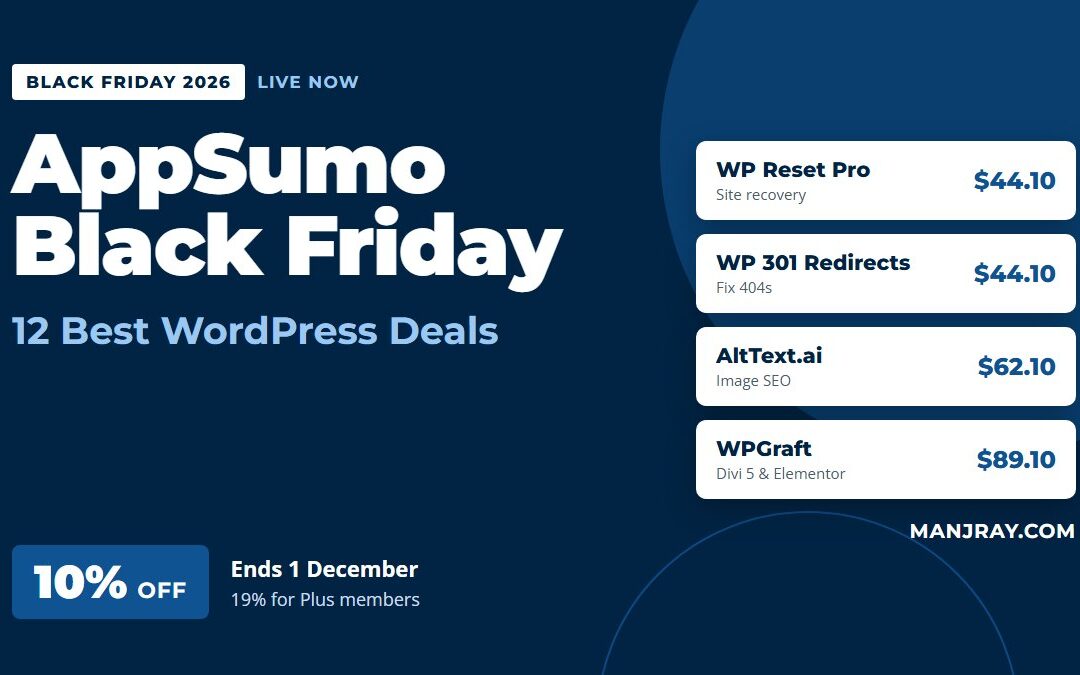
The AppSumo Black Friday 2026 sale is live. You get 10% off every deal in the Black Friday collection (19% off if you’re an AppSumo Plus member) until 1 December 2026 at 12:00 noon CT. 445 deals are included.
Some deals have an extra discount that ends sooner, so check the countdown on each deal page.
AppSumo has 445 lifetime deals in its Black Friday sale this year, and most of them aren’t for you. If you run a WordPress site, maybe a dozen are worth your money. I went through all 445 so you don’t have to.
Quick answer: The best AppSumo Black Friday deals for WordPress are WP Reset Pro ($44.10, rated 4.9 from 1,313 reviews), WP 301 Redirects ($44.10) and AltText.ai ($62.10). Together they cost about $150 once and cover site recovery, broken links and image SEO. If you build pages from reference designs, add WPGraft ($89.10). It works with Divi 5, Elementor, Gutenberg, Bricks and more.
I’m a WordPress and Divi developer and build sites for clients. Every price, rating and review count below was checked on appsumo.com on 24 November 2026. Prices include the 10% Black Friday discount and are for the cheapest plan.
Disclosure: this post contains affiliate links. If you buy through them you pay nothing extra, but I may earn a small commission.
AppSumo Black Friday 2026: dates and discount
- Discount: 10% off every deal in the Black Friday collection. AppSumo Plus members get 19%.
- Ends: Tuesday, 1 December 2026, at 12:00 noon Central Time.
- Deals included: 445, mostly lifetime deals (pay once, no subscription).
- Refunds: most deals can be refunded within 60 days of purchase.
- Extra flash discounts: a few deals have 15% off for a day or two. They’re marked on the deal card.
Ten percent doesn’t sound like much, but it applies on top of prices that are already a fraction of the yearly subscription. A $49 deal drops to $44.10, and you never pay for it again.
The 12 best AppSumo Black Friday deals for WordPress
| Deal | Black Friday price | Rating | Best for |
|---|
| WP Reset Pro | $44.10 | 4.93 (1,313 reviews) | Recovering a broken site |
| WP 301 Redirects | $44.10 | 4.85 (281) | 404s, broken links, redirects |
| AltText.ai | $62.10 | 4.69 (95) | Image SEO and accessibility |
| WPGraft | $89.10 | 4.7 (10) | Cloning designs into Divi 5 or Elementor |
| WebAbility.io | $53.10 | 4.96 (28) | WCAG and ADA accessibility |
| Internal Linking of Related Contents | $53.10 | 4.84 (25) | Blogs: automatic internal links |
| WP Login Lockdown | $53.10 | 4.76 (37) | Stopping brute-force logins |
| Screpy | $53.10 | 4.6 (915) | SEO audits and rank tracking |
| GetTerms | $71.10 | 4.46 (71) | Cookie banner and privacy policies |
| Moonitor | $48.60 | 5.0 (4) | Uptime alerts |
| wpDataTables | $62.10 | 4.45 (38) | Tables and charts in WordPress |
| WP Scheduled Posts | $35.10 | 4.0 (46) | Content calendar and auto-scheduling |
1. WP Reset Pro: the one every WordPress site should have
$44.10 (was $49) · 4.93 from 1,313 reviews · higher plans go up to unlimited sites
What it does: takes snapshots of your site before you change anything, so if a plugin update or a theme tweak breaks it, you roll back in a click. It also has an emergency recovery script for when you can’t even reach wp-admin.
Why it’s on the list: it’s the most-reviewed deal in the whole sale, and agencies running hundreds of sites rate it highly. Your host’s daily backup is great for disasters. WP Reset is for the “I just updated something and the page went white” moments.
See the WP Reset Pro deal →
2. WP 301 Redirects: fix 404s before Google notices
$44.10 (was $49) · 4.85 from 281 reviews
What it does: finds broken links and 404 errors, catches typo URLs and sends visitors to the right page, and manages all your 301 redirects in one place.
Why it’s on the list: every time you rename a page or delete a post, you leak traffic and link value. If you’ve ever redesigned a site, you have 404s you don’t know about.
See the WP 301 Redirects deal →
3. AltText.ai: alt text on autopilot
$62.10 (was $69) · 4.69 from 95 reviews · monthly image credits, more on higher plans
What it does: writes alt text for every image you upload, and can go back and fill in your existing media library.
Why it’s on the list: missing alt text is one of the most common issues in SEO audits, and it’s an accessibility problem too. Writing it by hand for hundreds of images is the job nobody ever does.
See the AltText.ai deal →
4. WPGraft: clone any page into Divi 5 or Elementor
$89.10 (was $99) · 4.7 from 10 reviews · only on AppSumo
What it does: takes a section or a whole page from any live website and rebuilds it as real, editable elements in your page builder. Its deal page lists Divi 5, Elementor, Gutenberg, Bricks, Breakdance, Oxygen, Beaver Builder and Webflow.
Why it’s on the list: for designers and agencies, it turns “I like that layout” into a starting point in minutes instead of an hour. Divi 5 support is rare. Most tools like this only do Elementor. Use it for layout inspiration, not to copy someone else’s content or branding.
The catch: only 10 reviews so far, and Divi 4 isn’t listed. If you’re still on Divi 4, read my Divi 5 vs Divi 4 guide first.
See the WPGraft deal →
5. WebAbility.io: accessibility without an overlay mess
$53.10 (was $59) · 4.96 from 28 reviews · stack up to 5 codes
What it does: scans your site for accessibility problems, fixes the ones it safely can, and flags the rest for you. It supports ADA, WCAG and AODA and installs on WordPress, Shopify, Wix and Webflow.
Why it’s on the list: accessibility lawsuits and rules are growing, and clients increasingly ask for it. On the deal page the vendor confirms it works with Divi 4 and Divi 5.
See the WebAbility.io deal →
6. Internal Linking of Related Contents: for bloggers
$53.10 (was $59) · 4.84 from 25 reviews · listed by the vendor, so AppSumo’s extra guarantee doesn’t apply (60-day refund still does)
What it does: automatically adds links between related posts inside your content.
Why it’s on the list: internal links are one of the cheapest SEO wins, and the most tedious to keep up on a growing blog.
See the Internal Linking deal →
7–12. The rest, in one line each
- WP Login Lockdown ($53.10): blocks brute-force login attacks. Check first that your host or Cloudflare isn’t already doing it.
- Screpy ($53.10): AI SEO audits and keyword tracking in one dashboard. 915 reviews, though one long-time buyer says some newer features need a higher plan.
- GetTerms ($71.10): a cookie consent banner plus privacy policy and terms generators. Useful if you sell to the EU or UK.
- Moonitor ($48.60): tells you when your site goes down before your customers do. It’s an early-stage product with only 4 reviews.
- wpDataTables ($62.10): responsive tables, graphs and charts. Great for comparison and pricing pages.
- WP Scheduled Posts ($35.10): an editorial calendar and auto-scheduling for WordPress posts.
AppSumo Black Friday deals to skip (if you use WordPress)
Not every “WordPress” deal suits every site. Before you buy, check it works with your page builder and doesn’t repeat something you already have:
- Nexter, ShopLentor, Animation Addons, Exclusive Addons: good tools, but they’re built for Gutenberg or Elementor. They won’t help if your site runs on Divi.
- WP Force SSL: if your site is behind Cloudflare, or your host gives you free SSL, you probably don’t need it.
- The Hostinger Bundle ($39.60): it’s a one-year licence, not lifetime, and it’s rated 3.35. You’ll usually get a better hosting price in Hostinger’s own Black Friday sale.
- DivMagic: copies designs from other sites, but its native Divi 5 support isn’t confirmed yet. For Divi, WPGraft is the safer bet right now.
Which bundle should you buy?
Small business site (~$88)
- WP Reset Pro
- WP 301 Redirects
- Your host covers backups and SSL
Blogger or content site (~$203)
- WP Reset Pro
- WP 301 Redirects
- AltText.ai
- Internal Linking of Related Contents
Designer or agency (~$248)
- WP Reset Pro
- WPGraft
- WebAbility.io
- AltText.ai
- Check higher tiers for more sites
Before you buy any AppSumo lifetime deal
- Read the plan limits, not just the price. Tier 1 usually covers few sites or credits. Higher tiers or stacked codes give you more.
- Check your page builder is supported (Divi, Elementor, Gutenberg).
- Look at the review dates. Recent reviews tell you more than a high score from three years ago.
- Redeem your code soon. Some deals, like WebAbility.io, must be redeemed within 60 days.
- Test it inside the 60-day refund window. Put a reminder in your calendar the day you buy.
- Need a page builder too? Elegant Themes is running its own sale. See my Divi Black Friday guide.
Frequently asked questions
When does the AppSumo Black Friday 2026 sale end?
The AppSumo Black Friday 2026 sale ends on Tuesday, 1 December 2026, at 12:00 noon Central Time. Some deals have extra discounts that end earlier.
How much is the AppSumo Black Friday discount?
10% off every deal in the Black Friday collection, or 19% for AppSumo Plus members. It applies on top of the regular lifetime deal price.
What are the best AppSumo Black Friday deals for WordPress?
WP Reset Pro, WP 301 Redirects and AltText.ai are the best value for most WordPress sites. Designers using Divi 5 or Elementor should also look at WPGraft.
Can I get a refund on an AppSumo deal?
Most AppSumo deals can be refunded within 60 days of purchase. A few products, such as AI skills once redeemed, are not refundable, so check the deal page.
Are AppSumo lifetime deals worth it?
They can be, if the tool is established and has recent positive reviews. The risk is that a small company changes its plans or shuts down. Stick to deals with many reviews, and test them within the 60-day refund window. My AppSumo deals review covers the common catches.
Do AppSumo WordPress plugins work with Divi?
Many do, but not all. Plugins that add their own Elementor or Gutenberg blocks won’t work inside the Divi builder. WP Reset, WP 301 Redirects, AltText.ai and WebAbility.io work on any WordPress site, and WPGraft supports Divi 5.
Final verdict
The AppSumo Black Friday sale is a good time to buy the WordPress tools you’ve been putting off, but only the ones you’ll actually use. For most sites that’s WP Reset Pro, WP 301 Redirects and AltText.ai, for about $150 in total, paid once. Designers should add WPGraft.
The 10% discount ends on 1 December at noon CT, and you have 60 days to change your mind.
See all AppSumo Black Friday deals →
Not sure if a deal works with your site? Ask in the comments and I’ll reply.
by Manjay Ray | Nov 9, 2026 | AI
Want to write, edit and update your WordPress posts by simply asking? With Claude Code in the Claude desktop app, you can connect your WordPress site and tell Claude what to change in plain English: write a new post, fix prices in an old article, set Rank Math SEO fields, upload a featured image or tweak your theme’s CSS.
In this step-by-step guide, I’ll show you two ways to connect Claude Code to WordPress, with a screenshot-style image for every step. The whole setup takes between 2 and 15 minutes.
Two Ways to Connect Claude Code to WordPress
| Method | How it works | Best for | Setup time |
|---|
| 1. WordPress MCP Adapter | The official MCP Adapter plugin plus an application password gives Claude real WordPress tools. | Repeatable content work on hosts that allow the REST API | 10–15 min |
| 2. Browser pane | Claude opens your wp-admin in the desktop app’s built-in browser while you are signed in. | Any host, page builders like Divi or Elementor, visual checks | 2 min |
Start with Method 1. If your host, cache or firewall blocks it, Method 2 works almost everywhere.
What You Need Before You Start
- The Claude desktop app, signed in, with the Code tab open
- A WordPress site on version 6.9 or newer (the Abilities API is built in from 6.9)
- An Administrator account on that site
- Node.js 20 or newer on your computer (Method 1 only). Check it with
node -v in a terminal.
- A fresh backup of your site. Most hosts offer a one-click backup.
Method 1: Connect with the WordPress MCP Adapter
MCP (Model Context Protocol) is the standard way AI tools like Claude talk to other apps. The official WordPress MCP Adapter plugin turns your site into an MCP server, and Claude Code connects to it with an application password.
Step 1: Install the MCP Adapter Plugin
- Download the latest zip from the WordPress/mcp-adapter releases page.
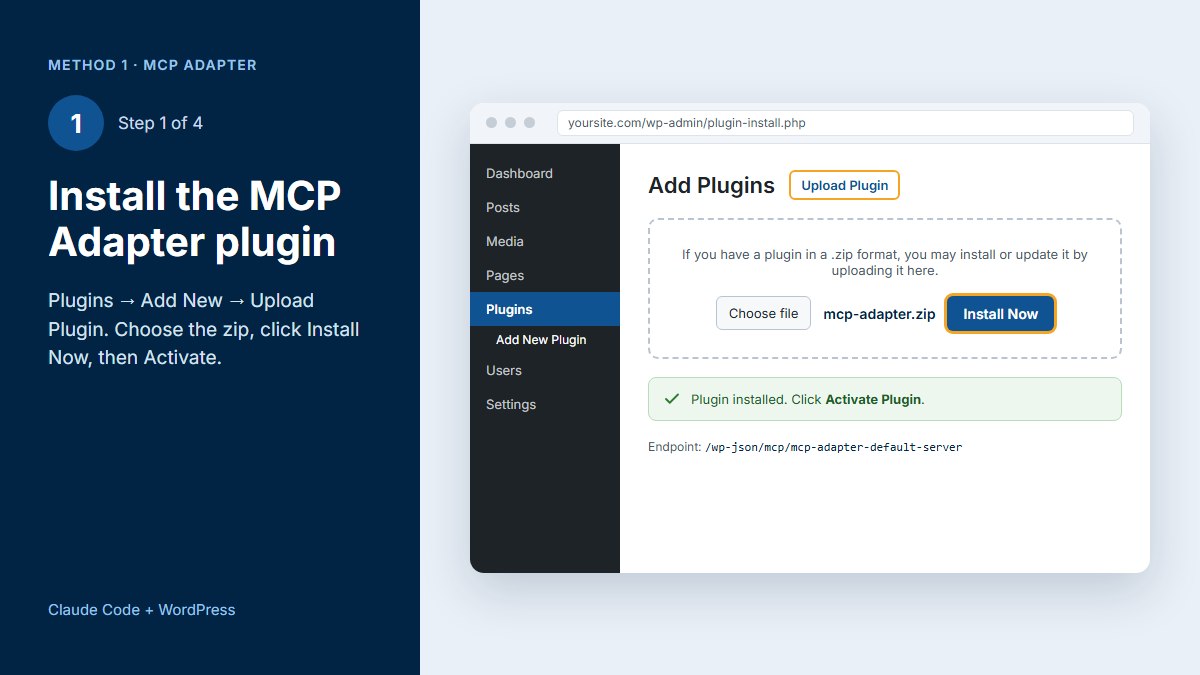
- In wp-admin, go to Plugins → Add New → Upload Plugin, choose the zip, click Install Now and then Activate.
- Your MCP endpoint is now
https://yoursite.com/wp-json/mcp/mcp-adapter-default-server.
Step 2: Create an Application Password
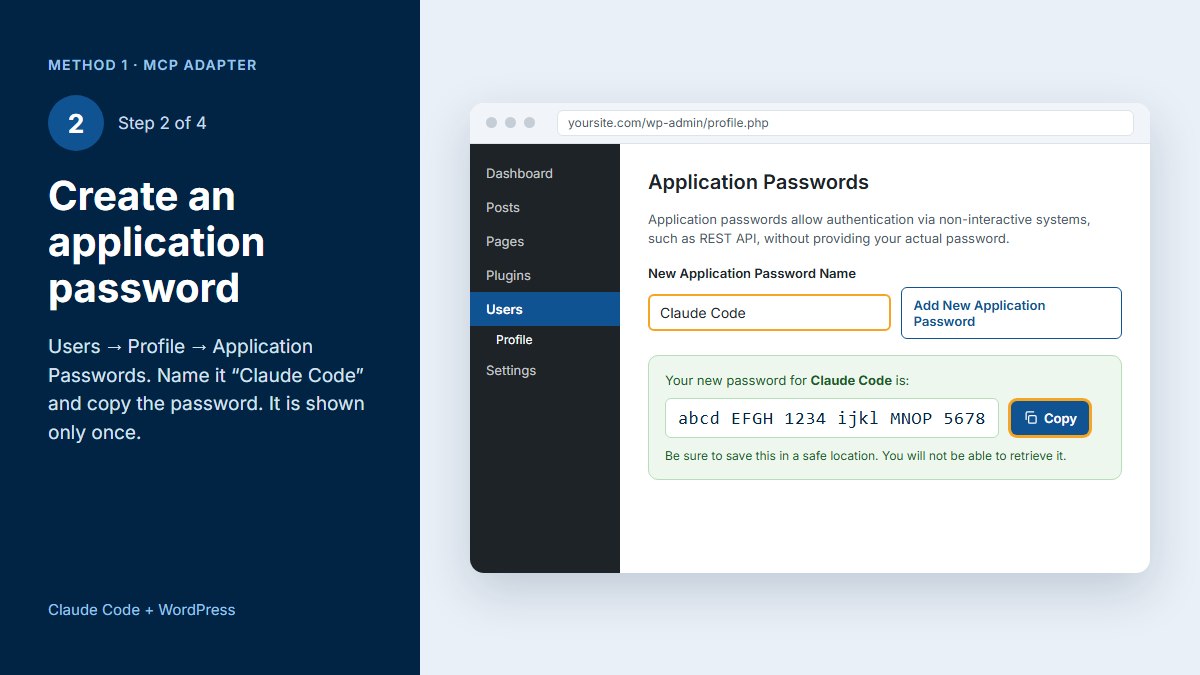
- Go to Users → Profile and scroll down to Application Passwords.
- Type a name such as Claude Code and click Add New Application Password.
- Copy the 24-character password. WordPress shows it only once.
Step 3: Add the WordPress Server to Claude Code
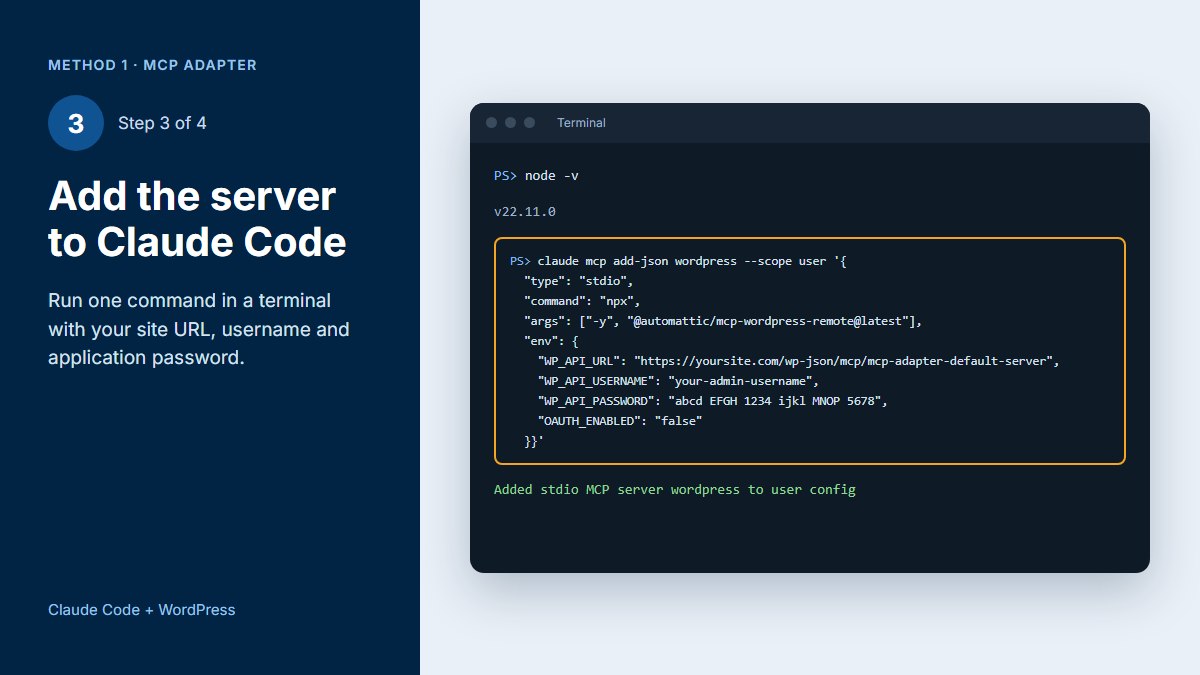
Open a terminal and run this one command. Replace the URL, username and password with your own.
claude mcp add-json wordpress --scope user '{"type":"stdio","command":"npx","args":["-y","@automattic/mcp-wordpress-remote@latest"],"env":{"WP_API_URL":"https://yoursite.com/wp-json/mcp/mcp-adapter-default-server","WP_API_USERNAME":"your-admin-username","WP_API_PASSWORD":"abcd EFGH 1234 ijkl MNOP 5678","OAUTH_ENABLED":"false"}}'
--scope user makes the server available in every project. Use --scope project to save it in a .mcp.json file for one folder only.- On Windows, if the server fails to start, use the full path to
npx.cmd as the command, for example C:\Program Files\nodejs\npx.cmd.
- No terminal? Ask Claude in the Code tab: “Add a WordPress MCP server for https://yoursite.com” and paste the details when it asks.
Step 4: Restart and Test the Connection
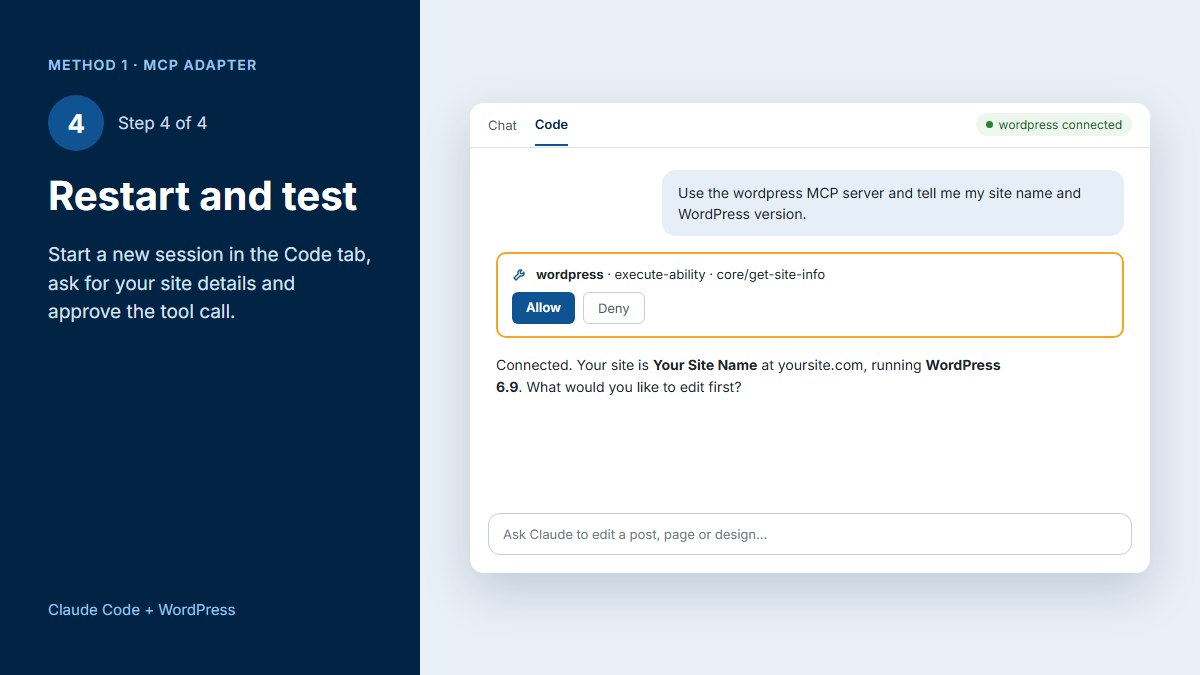
- Start a new session in the Code tab (or restart the app) so the server loads.
- Type: “Use the wordpress MCP server and tell me my site name and WordPress version.”
- Approve the tool call. If Claude replies with your site details, you are connected.
What Claude can do through this method depends on the abilities registered on your site. WordPress core adds a few basic ones and plugins add more. Ask Claude “list the WordPress abilities you can use” to see yours.
Method 2: Connect with the Browser Pane
The Claude desktop app has a built-in browser. You sign in to wp-admin yourself, and Claude works inside that session. Because it sees the same page you see, it can also check your design visually. This is the method I use on my own site, because it works with any host and with page builders like Divi.
Not sure whether a Divi site needs Claude at all? Read my Divi AI vs Claude comparison first.
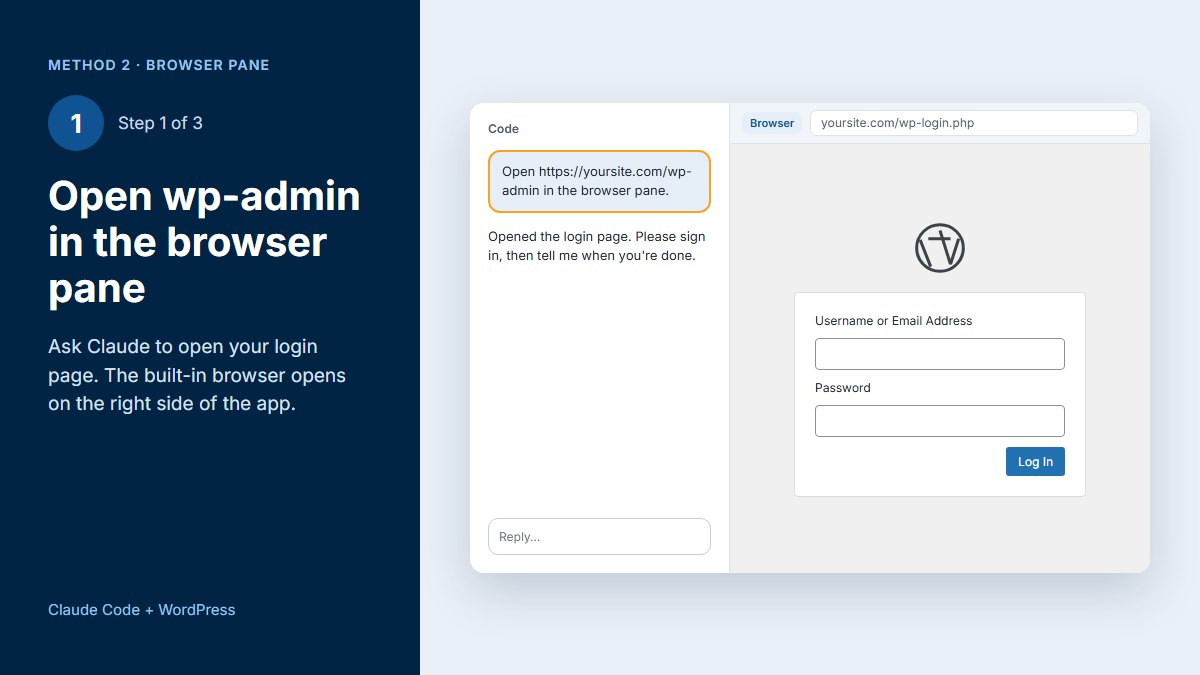
Step 1: Open wp-admin in the Browser Pane
In the Code tab, type: “Open https://yoursite.com/wp-admin in the browser pane.” The pane opens on the right side of the app.
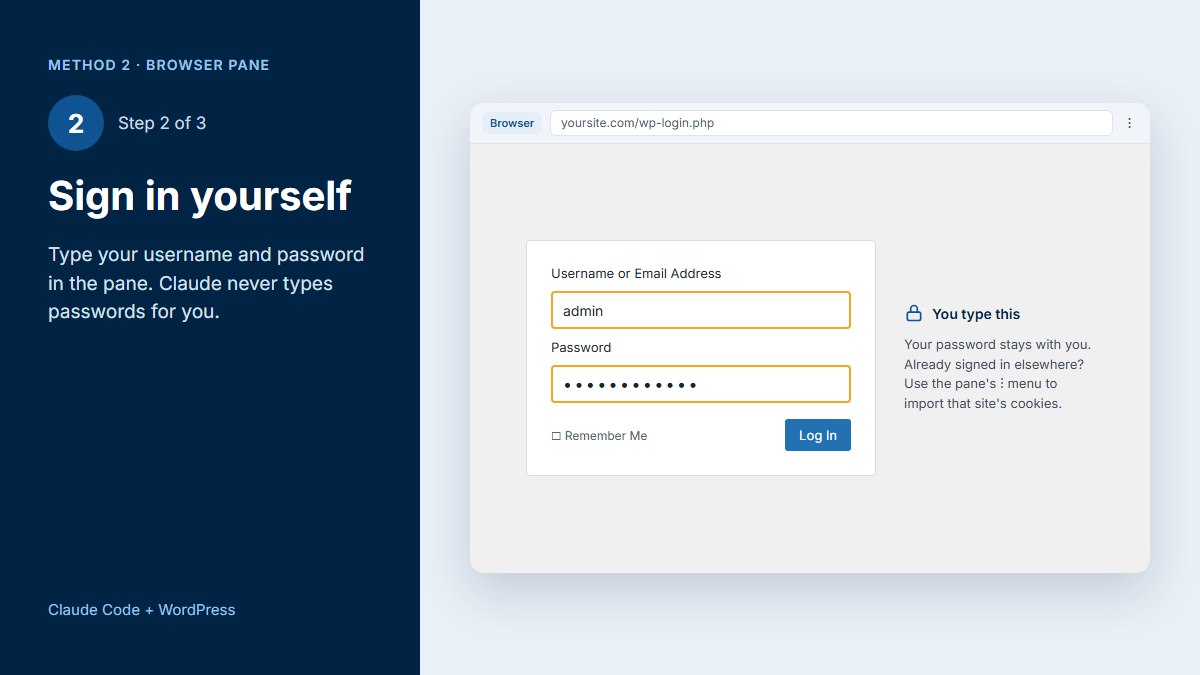
Step 2: Sign In Yourself
Type your username and password into the login form in the pane. Claude never types passwords for you. If you are already signed in to your site in your normal browser, you can import that site’s cookies from the pane’s ⋮ menu instead.
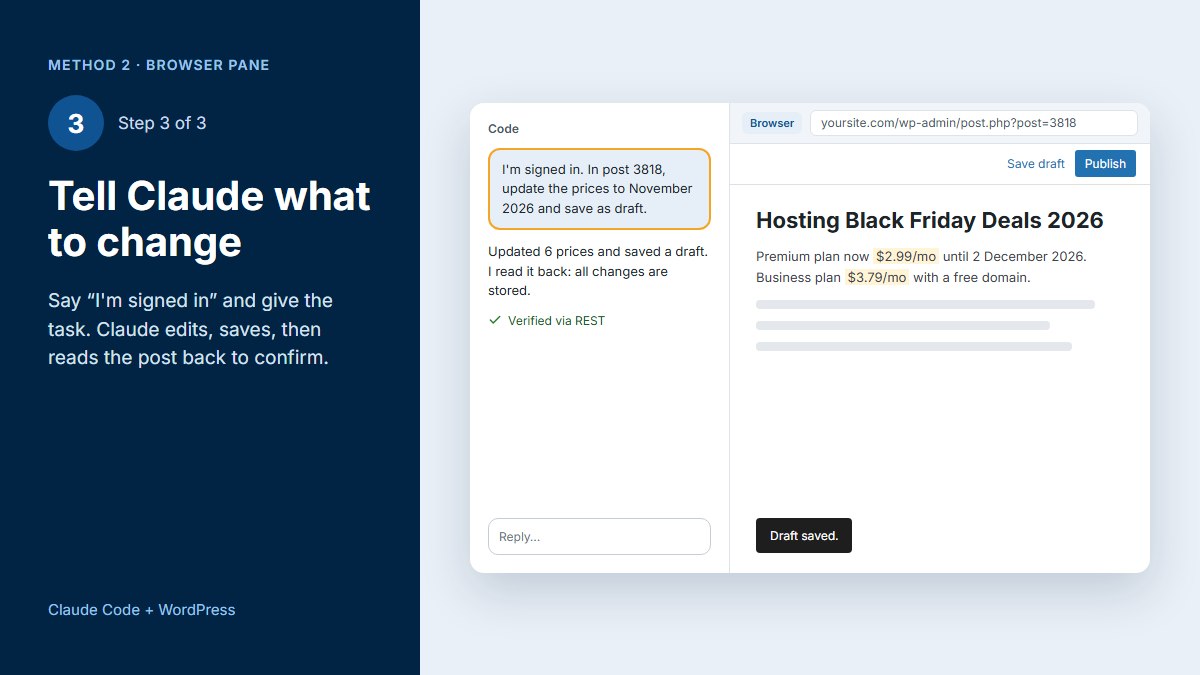
Step 3: Tell Claude What to Change
Once your dashboard shows, say “I’m signed in” and give your task. Claude works through the WordPress editor and the REST API inside your session, saves the change and then reads the post back to confirm it was stored.
Example Prompts to Edit Posts, Pages and Design
Give Claude one clear task at a time, name the post by title or ID, and ask it to save as a draft first.
| Task | Example prompt |
|---|
| Write a new post | “Write a 1,200-word post on best hosting for beginners, add an FAQ section with schema, and save it as a draft.” |
| Edit an existing post | “In post 1234, update all prices to November 2026, fix broken links and keep everything else unchanged.” |
| SEO fields | “Set the Rank Math title, meta description and focus keyword for this post.” |
| Featured image | “Design a 1200×675 featured image in Claude Design with my brand colors and set it as the featured image of this post.” |
| Bulk review | “List all posts from 2024 that mention Black Friday and show me which ones need updating. Don’t change anything yet.” |
| Design and CSS | “Make the header menu links navy and bold. Add the CSS to the child theme, then screenshot the homepage.” |
| Page builders | “Open the About page in the Divi builder and change the hero button text to Contact me.” (Use the browser pane for this.) |
| Plugins | “Check which plugins have updates and list them. Ask me before updating any.” |
After every change, ask Claude to read the post back or take a screenshot to confirm it saved correctly.
Troubleshooting Common Errors
| Problem | Likely cause | Fix |
|---|
HPE_INVALID_CHUNK_SIZE | A cache or proxy (LiteSpeed, Cloudflare) changes the streamed response | Exclude /wp-json/mcp/* from LiteSpeed Cache and add a Cloudflare Cache Rule to bypass it, or use Method 2 |
401 Unauthorized | Wrong username or application password, or a security plugin blocks it | Create a new application password and allow REST API logins in your security plugin |
404 on the endpoint | Plugin not active, or permalinks set to Plain | Activate MCP Adapter and set Settings → Permalinks to Post name |
| Server never starts on Windows | The app can’t find npx | Use the full path to npx.cmd as the command |
| Connected, but no tool to edit posts | No content abilities are registered | Add a plugin that registers post abilities, or use Method 2 |
Safety Tips
- Back up first and test big changes on a staging site.
- Drafts before publishing: ask Claude to save as a draft, review it, then publish it yourself.
- Keep the application password private. Never commit a
.mcp.json file with a password to Git. Revoke it under Users → Profile if it leaks.
- Use a dedicated user with the Editor role if Claude only needs to manage content.
- Approve tool calls on live sites instead of letting everything run automatically.
Frequently Asked Questions
Can Claude Code edit WordPress posts directly?
Yes. Through the WordPress MCP Adapter or the browser pane in the Claude desktop app, Claude Code can create, edit and update posts, pages, SEO fields and media on your WordPress site.
Is it safe to connect Claude to my WordPress site?
It is safe if you use an application password instead of your main password, approve each tool call, save changes as drafts first and keep a recent backup. You can revoke the application password at any time.
Does it work with Divi or Elementor?
Yes. Use the browser pane method for page builders, because Claude can see and work in the builder the same way you do.
Do I need coding skills?
No. You need to run one command for Method 1, and Method 2 needs no commands at all. After that you give Claude instructions in plain English.
Why does the MCP connection fail with HPE_INVALID_CHUNK_SIZE?
A server cache or CDN such as LiteSpeed Cache or Cloudflare is changing the streamed response. Exclude the /wp-json/mcp/ path from caching, or use the browser pane method instead.
Final Thoughts
Connecting Claude Code to WordPress turns routine site work into a short conversation. Use the MCP Adapter if your host allows it, and keep the browser pane method for page builders and visual changes. Start with drafts, check every change, and you will save hours on content updates every month.
by Manjay Ray | Nov 9, 2026 | Divi
Deal status · live · updated 25 November 2026
The Divi Black Friday 2026 sale is live now and runs until Sunday, 29 November, around 6 p.m. PT. Divi Lifetime is $187 (normally $249), Divi Pro is $176/year (normally $277), and Divi Lifetime + Pro is $197, only $10 more than Lifetime alone. Every qualifying purchase also comes with a free Divi Marketplace product while supplies last.
Get the Divi Black Friday deal →
Every November, Elegant Themes runs its biggest sale of the year, and every November my inbox fills with the same question: “Should I wait for the Divi Black Friday deal, and which plan should I get?”
Quick answer: The Divi Black Friday sale is live until 29 November. If you’re going to buy Divi in the next year, buy it now: these are the lowest prices Elegant Themes offers. For most people the best value is a Divi Lifetime plan at $187 (one payment, unlimited sites). But look at Lifetime + Pro at $197: for $10 more you get a year of Divi AI, Cloud, VIP and Teams too. There’s a 30-day money-back guarantee either way.
I’m a WordPress and Divi developer and build Divi sites for clients. Prices below were checked on Elegant Themes’ own pages in November 2026. I don’t repeat the “up to 90% off” guesses you’ll see on coupon sites.
Disclosure: this post contains affiliate links. If you buy through them you pay nothing extra, but I may earn a small commission.
When is the Divi Black Friday sale in 2026?
The sale is live now. Here are the dates from Elegant Themes’ Black Friday page:
- It started on Tuesday, 24 November 2026, at 7 a.m. PT.
- The countdown ends on Sunday, 29 November, around 6 p.m. PT. That’s about 2 a.m. on Monday 30 November in the UK and 7:30 a.m. on Monday in India.
- The free gifts are given out in order and sell out, so the earlier you buy, the better the gift.
Coupon sites are still quoting “up to 90% off”. The real top discount is 80% off Divi Pro (81% on Lifetime + Pro), so ignore anything bigger.
Divi Black Friday 2026 deal: what’s included
Here are the Black Friday discounts Elegant Themes has published for each product:
| Product | Black Friday discount | Notes |
|---|
| Divi + Pro bundles | 80% off | The biggest discount. Now includes the Divi AI Agent |
| Divi AI | 70% off | Includes the Divi AI Agent |
| Divi Marketplace | Up to 70% off | Modules, child themes and layouts |
| Divi Cloud | 44% off | Store and share your Divi layouts and templates |
| Divi VIP | 44% off | Support replies in under 30 minutes, plus 10% off the Marketplace |
| Divi Teams | 44% off | Seats for team members with their own logins |
Two more offers aren’t in the table: upgrading an existing yearly membership to Lifetime and renewing an expired membership are both 25% off. The full price list is in the next section.
The best deal this year
Divi Lifetime + Pro costs $197, only $10 more than Divi Lifetime alone ($187). That extra $10 gets you a full year of Divi AI (with the AI Agent), Divi Cloud, Divi VIP support and Divi Teams. After the first year, the Pro services renew at $130/year. Before you pay, check at checkout how to turn off the Pro renewal if you only want the first year.
Get Divi Lifetime + Pro for $197 →
On top of the discounts, Elegant Themes has confirmed these extras:
- Existing customers can re-bundle. “Repackage & Save” moves all your current subscriptions into one Divi Pro plan at 80% off (Elegant Themes says this saves $712 a year). Lifetime members get an Ecosystem bundle with every Pro service at 79% off (saving $589 a year). You can also build your own bundle of two or three services.
- A free Divi Marketplace product with each qualifying purchase, while supplies last. Prizes are given out in order: Divi Plus went to the first 400 buyers and has sold out. As of 25 November, buyers get Divi Overlays Popups, followed by DiviFlash, Divi Toolbox, Divi Den Pro, Divi Pixel, Divi Form Builder, Divi Supreme Pro, Divi Essential, the Accessibility Bundle and Divi Assistant.
- Up to nine gifts per person. Each different qualifying purchase earns its own gift.
- The Divi 5 Design System and extra Marketplace discounts with any purchase during the sale. Download the Design System before the sale ends.
- Five Marketplace bundles at 70% off: the Divi 5 Bundle, Module Bundle, Layouts Bundle (15,600+ layouts), Feature Bundle and New Arrivals Bundle. Each one also earns a free gift.
How the free gifts work
Elegant Themes’ Black Friday page shows which gift is on offer right now and how many are left. You get the gift that’s showing when you buy, so if you want a particular plugin, wait until it appears. Each of these counts once:
- A new Divi membership
- An upgrade to Divi Lifetime
- Divi AI, Divi Cloud and Divi VIP (one gift each)
- Your first purchase of Divi Teams seats
- Each Black Friday Marketplace bundle
Individual Marketplace products don’t earn a gift. My advice: don’t let the gifts push you into buying services you won’t use. A free plugin you never install isn’t a saving.
See the Divi Black Friday offer →
How it compares with last year (2025)
According to Elegant Themes’ own help center, the 2025 Black Friday sale included:
- 80% off Divi Pro and Divi Pro bundles
- A free Divi Marketplace product with every purchase
- For existing members: the option to repackage active subscriptions and lock the Black Friday discount in for future renewals
- The Divi 5 Design System (hundreds of presets and variables) for Black Friday buyers and lifetime customers
- 70% off exclusive Divi Marketplace bundles
So far 2026 looks very similar: the same top discount, free Marketplace gifts and the Design System. Elegant Themes has also confirmed that current customers can re-bundle again this year.
Divi Black Friday 2026 prices
These are the live Black Friday prices, compared with Elegant Themes’ regular prices, checked on 25 November 2026:
| Plan | Regular price | Black Friday price | What you get |
|---|
| Divi (yearly) | $89/year | $67/year (25% off) | Divi theme and builder, Extra, Bloom, Monarch, unlimited sites, support |
| Divi Lifetime | $249 one-time | $187 one-time (25% off) | The same as Divi yearly, with updates and support for life |
| Divi AI (add-on) | $193/year | $86/year | Unlimited AI text, images, code and layouts, plus the Divi 5 AI Agent ($60/year Agent balance) |
| Divi Pro (yearly) | $277/year | $176/year | Divi plus Divi AI, Divi Cloud, Divi VIP support and Divi Teams |
| Divi Lifetime + Pro | $297 first payment, then $212/year | $197 first payment, then $130/year | Divi for life, plus the Pro services for as long as you renew them |
One thing that surprises people: Divi AI, Cloud, VIP and Teams are never lifetime. Even on a lifetime plan, the Pro services renew every year. Only Divi itself is a one-time purchase.
Which Divi plan should you buy on Black Friday?
Divi yearly
- You have one site, or you’re trying Divi out
- You want the lowest upfront cost
- You’re not sure you’ll still use Divi in 3 years
Get Divi yearly →
Divi Lifetime (best for most)
- You’ll use Divi for more than 3 years
- You build sites for clients
- You want to stop paying every year
- You don’t need Divi AI, or you’ll use another AI tool
Get Divi Lifetime →
Divi Pro or Lifetime + Pro
- You’ll use the Divi AI Agent every week
- You run an agency and need Divi Cloud and Teams
- Fast VIP support is worth money to you
Get Divi Pro →
Not sure about Divi AI? It’s the add-on people buy most often and use least. Before paying for it, read my Divi AI vs Claude comparison. Many Divi users get the same help from a general AI assistant they already pay for.
Is Divi worth buying in 2026?
For most people building WordPress sites, yes, and especially at a Black Friday price. Here’s my honest take after building client sites with it:
The good:
- Divi 5 is a big step forward. It’s been the stable version since February 2026, with a faster builder, Flexbox and Grid layouts, design variables and a Loop Builder. See my Divi 5 vs Divi 4 guide for what changed.
- Unlimited sites on every plan. Most competitors charge per site or cap you at 1,000.
- The lifetime option. Very few page builders still sell one.
The catches:
- There’s a learning curve if you’ve never used a page builder.
- The add-ons renew yearly, even on lifetime plans.
- Moving away from Divi later takes work. Your layouts are built with Divi, so switching to another builder means rebuilding pages.
Already a Divi member? What you can get
- Yearly members: Black Friday is usually the cheapest time to upgrade to Lifetime. Elegant Themes has confirmed that current customers can re-bundle their subscriptions at the sale price again this year.
- Lifetime members: you already have Divi for life. Elegant Themes says current Lifetime members already get this year’s extra Marketplace discounts, and any purchase during the sale (a Pro service, for example) also unlocks the Divi 5 Design System and a free gift.
- Note: Elegant Themes says previously purchased subscriptions aren’t prorated on new purchases, so check what you’ll lose before you switch plans.
Before you buy on Black Friday
- Decide on your plan now, using the cards above, so you’re not choosing under a countdown timer.
- Check the renewal price, not just the first payment. Last year’s discount applied to renewals for members who repackaged, but confirm it on the checkout page.
- Remember the add-ons renew yearly, even on a lifetime plan.
- Time your purchase for the gift you want. Gifts rotate and are limited, so check which one is showing before you pay.
- Don’t leave it to the last day. The sale ends on Sunday 29 November, around 6 p.m. PT, and the best free gifts go first.
- Use the 30-day money-back guarantee if Divi isn’t right for you.
- Need hosting too? Hostinger’s Black Friday sale runs at the same time. See my Hostinger Black Friday 2026 guide.
Bought Divi? Let me build the site.
I build fast, mobile-friendly Divi 5 websites for small businesses, and upgrade older Divi 4 sites safely. You get a site you can edit yourself, without the learning curve.
Get a free quote →
Frequently asked questions
When is the Divi Black Friday sale in 2026?
The Divi Black Friday 2026 sale is live. It started on Tuesday, 24 November 2026, at 7 a.m. PT, and Elegant Themes’ countdown ends on Sunday, 29 November, around 6 p.m. PT.
How much is the Divi Black Friday discount in 2026?
Divi Lifetime is $187 (normally $249), Divi yearly is $67 (normally $89), Divi Pro is $176 a year (normally $277) and Divi Lifetime + Pro is $197, then $130 a year. Divi AI is $86 a year, Divi Cloud, VIP and Teams are 44% off, and Marketplace bundles are 70% off. Each qualifying purchase also gets a free Divi Marketplace product while supplies last.
What free gifts come with the Divi Black Friday deal?
Each qualifying purchase gets a free Divi Marketplace product, such as Divi Pixel, DiviFlash or Divi Supreme Pro, while supplies last. You can collect up to nine gifts. Any purchase during the sale also unlocks the Divi 5 Design System.
How much was the Divi Black Friday discount last year?
In 2025, Elegant Themes offered 80% off Divi Pro and Divi Pro bundles, plus a free Divi Marketplace product with every purchase.
Does Divi have a lifetime deal?
Yes. Divi Lifetime is a one-time payment for Divi with updates and support for life. Its regular price is $249. Divi AI, Cloud, VIP and Teams are not available as lifetime purchases and renew yearly.
Is Divi AI included in Divi Lifetime?
No. Divi AI is a separate yearly subscription ($193 a year at the regular price) or part of Divi Pro. It is not included in the Divi yearly or Divi Lifetime plans.
Can existing Divi customers get the Black Friday deal?
Yes. Elegant Themes has confirmed that current customers can re-bundle during the 2026 sale, and an upgrade to Lifetime qualifies for a free gift. Previously purchased subscriptions are not prorated on new purchases.
Can I get a refund if Divi isn’t right for me?
Yes. Elegant Themes offers a 30-day money-back guarantee.
Final verdict
The Divi Black Friday sale is live until 29 November, and it’s the cheapest Divi will be all year. For most people, Divi Lifetime at $187 is the plan to grab. If you’d use Divi AI or VIP support even occasionally, Lifetime + Pro at $197 is the better buy: just $10 more for a year of every Pro service.
Not sure Divi is for you? The 30-day guarantee means you’re not locked in.
See Divi plans and prices →
Building your site with Divi? AppSumo is running its own sale on lifetime WordPress tools this week, several of which work with Divi 5. See my AppSumo Black Friday deals for WordPress.
Questions about which plan to pick? Leave a comment and I’ll reply.
by Manjay Ray | Nov 9, 2026 | Divi
A member of the Divi Facebook group asked a question I hear from clients every week:
“Do I need Claude AI to use for my Divi website, or does Divi AI do the same thing as Claude AI?”
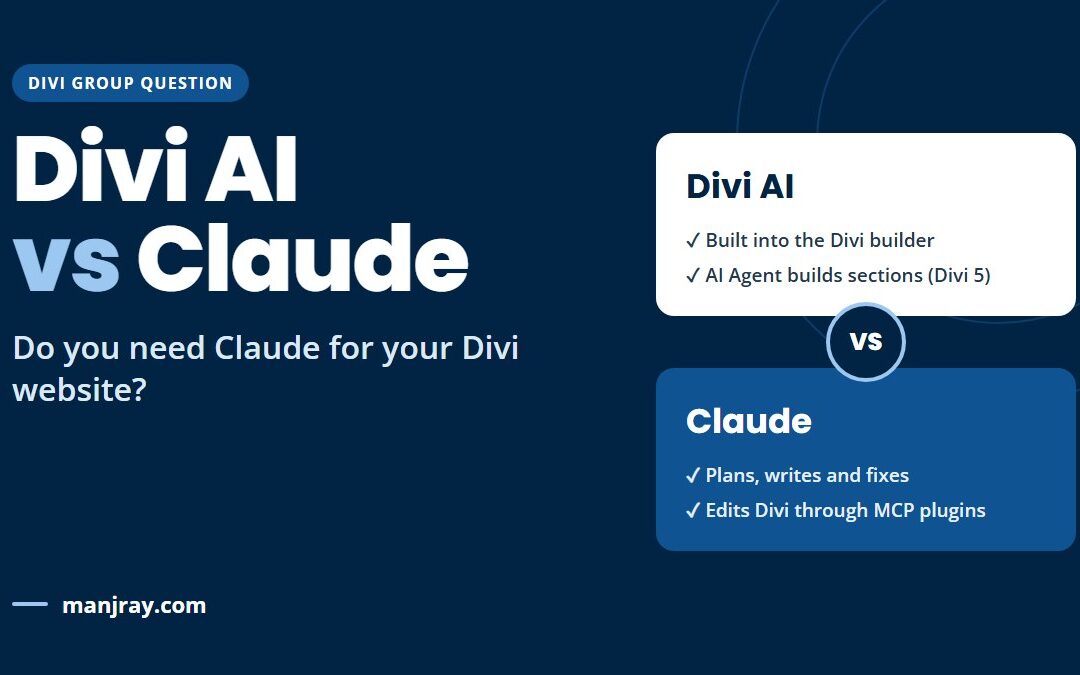
So, Divi AI vs Claude: which one does a Divi website actually need? Here’s what the group said, and my own answer.
The replies were a good snapshot of how Divi users actually work with AI in 2026. Some swear by Claude, some use ChatGPT, a few think Divi AI is weak, and one person asked whether the poster was “just too lazy” to build the site themselves. I read every reply, checked the facts against Elegant Themes’ own documentation, and added what I’ve seen on client sites.
Quick answer: No, you don’t need Claude to build a Divi website, and you don’t need Divi AI either. They overlap but aren’t the same. Divi AI lives inside the Divi builder and, in Divi 5, has an AI Agent that can build and edit sections for you. Claude is a general-purpose assistant that’s stronger at planning, writing a lot of content and fixing problems, but on its own it can’t touch your site. It only becomes a “Divi tool” when you connect it, usually with an MCP plugin. If you just want help inside the builder, start with Divi AI or nothing. If you want help with the whole project, look at Claude.
I’m a WordPress and Divi developer and build and fix Divi sites for clients. Facts and prices below were checked in November 2026.
Disclosure: this post contains affiliate links. If you buy through them you pay nothing extra, but I may earn a small commission. I’m not connected to any of the AI plugins mentioned.
Divi AI vs Claude: what the Divi community said
The thread got 13 replies. Grouped together, they say a lot:
| What people said | Replies | The point |
|---|
| “I use Claude on my Divi sites and love it” | 6 | Building whole sites, creating pages, fixing issues they’d normally pay someone for |
| “I use ChatGPT instead” | 3 | One let ChatGPT’s agent log in and click around. Another used it to find speed problems |
| “Divi AI isn’t that great” | 2 | One tried Divi AI with Claude writing the content, didn’t like the result, and switched to Claude alone |
| Other tools / opinions | 2 | A mockup tool first, then built in Local WP. And one “are you just too lazy?” |
Three things stood out:
- Nobody said “you need Claude”. Even the biggest Claude fans described it as a choice. One member put it well: they use Claude, but didn’t get a Claude account just for Divi.
- How you connect the AI matters more than which AI you pick. People got good results through very different routes: an MCP plugin, a browser agent, WP-CLI, or importing JSON layouts. I cover each one below.
- Divi AI got little love, but most of those opinions are about the older, text-and-image Divi AI. The Divi 5 AI Agent is newer and does a lot more, so it’s worth a second look if you tried Divi AI a year ago.
What Divi AI does in 2026
Divi AI is Elegant Themes’ own AI, built into the Divi builder. It now comes in two parts:
- Divi AI (writing, images and code). Write or rewrite text in a module, generate and edit images, and write custom CSS or code. Works in Divi 4 (4.22+) and Divi 5.
- The Divi AI Agent (Divi 5 only). A chat panel in the Visual Builder that does real work: it adds modules, changes settings, builds whole sections, can build a page from a screenshot or URL, and can create pages and manage menus. It has an Ask mode (answers only) and a Build mode (makes changes).
The big advantage: it already knows Divi. There’s nothing to connect, no plugin to install, and changes appear right in the builder where you can see them.
The limits: it works inside the builder, one page at a time, and it’s not a strategy partner. It won’t plan your site structure, research keywords or write 20 service pages in your voice as well as a general assistant will.
Cost: Divi AI isn’t included in a basic Divi membership ($89/year). You can buy it on its own for $193/year (monthly billing is also available), or get it in Divi Pro for $277/year, which includes Divi itself. Text, image, code and layout generation is unlimited. The AI Agent is metered: you get a $5 monthly balance ($60 a year) that resets on your renewal date and doesn’t roll over, and heavier use is paid from an AI Wallet you top up. You can try Divi AI’s builder tools free for 100 uses (the Agent isn’t part of the trial). Prices checked November 2026; see Elegant Themes’ pricing page for current prices.
What Claude does for a Divi site
Claude (from Anthropic) is a general AI assistant, like ChatGPT. On its own, in a normal chat, it’s very good at:
- Planning a site: pages, structure, what each page should say
- Writing a lot of content in a consistent voice, if you teach it about your business first
- SEO: titles, meta descriptions, headings, FAQ sections
- Fixing problems: explaining an error, writing CSS or PHP, finding why something is slow
But in a normal chat it can’t see or change your website. You copy and paste between the chat and Divi. That’s fine for a few paragraphs and tedious for a whole site.
It starts to feel like a Divi tool when you connect it to your site. Most of the “I love Claude” replies in the thread came from people who had done exactly that.
Want to set it up yourself? Here’s my step-by-step guide on how to connect Claude Code to WordPress, with images for every step.
Divi AI vs Claude at a glance
| | Divi AI | Claude |
|---|
| Where it works | Inside the Divi builder | In a chat app. Connects to your site only if you set it up |
| Knows Divi | Yes, built in | Knows about Divi. Needs a connector to edit Divi layouts properly |
| Builds sections and pages | Yes, with the AI Agent (Divi 5) | Yes, through an MCP plugin, browser agent or layout import |
| Plans a whole site | Limited | Strong |
| Writes lots of content | One module or page at a time | Strong, especially once it knows your business |
| Fixes code and site problems | Writes CSS and code snippets | Strong, and can run tools if connected |
| Setup | None | None for chat. A plugin or tool to connect it to your site |
| Divi version | Agent needs Divi 5 | Chat works with any. Most Divi plugins for it need Divi 5 |
| Cost | $193/year on its own, or in Divi Pro ($277/year). Agent: $5/month balance, then top-ups | Free plan (includes connectors). Pro is $20/month, or $17/month billed yearly |
5 ways Divi users connect AI to their site (from the thread)
This is the most useful part of the discussion. Here are the routes people actually used, from easiest to most technical.
1. Copy and paste
Difficulty: easy · Risk: none
Ask Claude or ChatGPT for the text, paste it into Divi modules yourself. One member had Claude write the content and Divi AI build the layout. Slow for big sites, but you stay in full control and nothing can break.
2. Let a browser agent click through wp-admin
Difficulty: easy · Risk: medium
One member just opened ChatGPT, logged in during the chat, and let it do the work. No Divi AI, no plugin. Agent modes in ChatGPT and Claude can drive a browser (with Claude, that’s Claude in Chrome, which needs a paid plan). It works, but it’s slower, it can misclick, and you’re giving an AI your login. Use a separate user with limited permissions, and try it on a staging copy first.
3. Connect Claude to Divi with an MCP plugin
Difficulty: medium · Risk: low to medium
MCP (Model Context Protocol) is a standard way for an AI assistant to talk to your site directly instead of clicking through screens. Plugins mentioned in the thread:
- JHMG AI Editor for Divi 5: free on WordPress.org, made for Divi 5. It checks every layout change before saving and keeps undo history. Its developer answered in the thread (and disclosed it), and another member said it’s “been great so far”.
- Novamira: gives Claude broad access to WordPress, including PHP, files and the database. One member said it gave them “the best experience” and a complete site. That power is also the risk: Novamira itself says it’s meant for development and staging sites.
This is the route most of the happy Claude users took. It’s faster than a browser agent and the plugin can stop broken layouts from being saved.
4. Generate layouts as JSON and import them
Difficulty: medium · Risk: low
The most detailed story in the thread: a member tried Divi AI six months ago and didn’t like it. Two months ago they asked Claude to create the whole site without Divi AI. Claude produced every page, section, layout and link as Divi .json files to import. They had “educated Claude intensively” about themselves, their non-profit and their book first, and ended up editing only about 10% of the text. That last part is the real lesson: the AI is only as good as the brief you give it.
5. WP-CLI, database dumps and Git (for developers)
Difficulty: hard · Risk: low if done right
One member taught Claude to use WP-CLI on their Divi sites. Claude dumps the database after every change and the code is in Git, so every change can be undone. This is how I’d run it on client sites, but it needs server access and some comfort with the command line.
Before you let any AI edit your site
- Work on a staging copy first, not your live site.
- Make a full backup before every AI session.
- Use a separate WordPress user for the AI, with only the permissions it needs. Never give it your main admin password.
- Check every page on desktop and phone afterwards. AI-built layouts often look fine on desktop and break on mobile.
- Read the content. AI gets facts, prices and phone numbers wrong with total confidence.
“Isn’t this just being lazy?”
One reply asked exactly that. It’s a fair challenge, and the answer is in another reply: a member has Claude build with Divi so they can still edit the site themselves later.
That’s the right way to think about it. Using AI to do the repetitive parts (laying out 15 similar pages, writing first drafts, finding a CSS fix) isn’t lazy, it’s what you’d pay a junior developer for. But you still need to know what a good page looks like, check what the AI did, and be able to fix it. Building in Divi rather than letting AI write a custom-coded site keeps the site editable by you, and by anyone you hire later.
Divi AI vs Claude: which should you use?
Divi AI is enough
- You’re on Divi 5 and want help inside the builder
- You need text tweaks, images or a few new sections
- You don’t want to set anything up
- You already have Divi Pro
Add Claude
- You’re planning or rebuilding a whole site
- You need a lot of content in your voice
- You want help with SEO, speed or code problems
- You’re happy to install an MCP plugin (on staging first)
You don’t need either
- Your site is small and already works
- You only change a few things a year
- You’d rather pay someone than learn a new tool
If you’re still on Divi 4, note that the Divi AI Agent and most Claude-for-Divi plugins need Divi 5. My Divi 5 vs Divi 4 guide explains how to upgrade safely first.
Do you need to pay for both?
No. Pick based on where you spend your time:
- Most of your time in the builder? Divi AI (or Divi Pro) is the simpler choice.
- Most of your time planning, writing and fixing? Claude on its Free or Pro plan, plus a free MCP plugin, covers it.
- Already pay for ChatGPT? Several members use it for the same jobs. The connection method matters more than the brand.
Some people use both: Claude for planning and content, Divi AI for quick edits in the builder. That works, but start with one and add the other only if you hit a real limit.
Want AI speed without the risk?
I build and fix Divi sites for clients, using AI where it helps and checking every page by hand. I can also set up Claude or Divi AI on a staging copy of your site, so you can use it safely yourself.
Get a free quote →
Frequently asked questions
Do I need Claude AI to build a Divi website?
No. You can build a Divi website with no AI at all, with Divi AI, or with another assistant such as ChatGPT. Claude is helpful for planning, writing content and fixing problems, but it isn’t required.
Is Divi AI the same as Claude?
No. Divi AI is built into the Divi builder and knows Divi, and in Divi 5 its AI Agent can build and edit sections. Claude is a general-purpose assistant that is stronger at planning and writing, but it can only edit your site if you connect it, for example with an MCP plugin.
Can Claude edit my Divi site directly?
Yes, if you connect it. The usual way is an MCP plugin such as JHMG AI Editor for Divi 5 or Novamira. Claude can also drive a browser and click through wp-admin, or generate Divi layouts as JSON files for you to import.
Is Divi AI included with Divi?
No. Divi AI is a separate subscription ($193/year in November 2026) or part of Divi Pro ($277/year, which includes Divi). Each subscription includes a $5 monthly balance for the Divi AI Agent, which does not roll over.
Does the Divi AI Agent work in Divi 4?
No. The Divi AI Agent needs Divi 5. Divi AI’s text, image and code tools work in Divi 4.22 and later.
Is it safe to let AI edit my WordPress site?
It can be, if you work on a staging copy, make a backup first, give the AI its own user with limited permissions, and check every page afterwards. Don’t let any AI edit a live store during a busy sales period.
Final verdict
In the Divi AI vs Claude debate, the two aren’t rivals so much as different tools. Divi AI is the easy option inside the builder, and the Divi 5 AI Agent makes it much more capable than it was. Claude is the better partner for the whole project: planning, content, SEO and fixes, and with an MCP plugin it can build Divi pages too.
The Divi community’s experience points the same way: the people happiest with AI were the ones who connected it properly, taught it about their business, and kept checking its work.
Don’t have Divi yet? New sites start on Divi 5, so you can try the AI Agent straight away. If you’re buying this month, wait for the Divi Black Friday sale: it’s the cheapest time of year to get Divi and Divi AI.
Get Divi from Elegant Themes →
Do you use Divi AI, Claude or ChatGPT on your Divi site? Tell me what worked in the comments.

Recent Comments