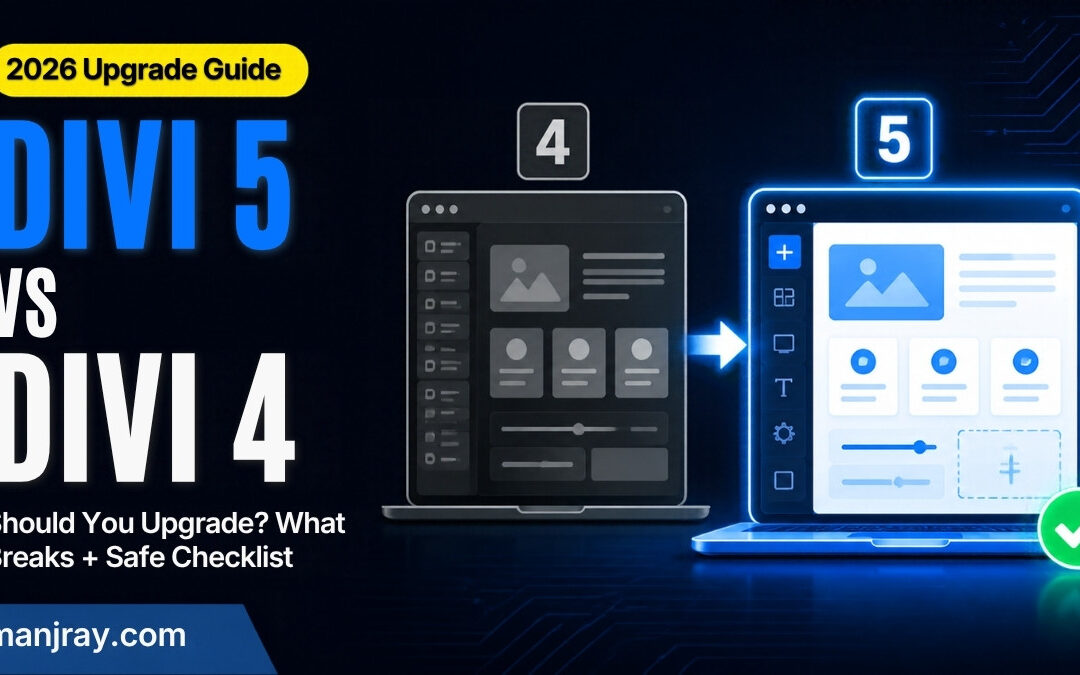
by Manjay Ray | Nov 6, 2026 | Divi
Your Divi dashboard has been showing an “Enable Divi 5 Updates” button for months. Everyone says Divi 5 is faster and better. But your site works fine today, you have paying customers, and you’ve heard stories about layouts breaking after the upgrade.
So should you click it?
Quick answer: Divi 5 has been the stable version since February 26, 2026, it’s a free update for anyone with an active Elegant Themes membership, and for most sites it’s worth upgrading now, on a staging copy first. Wait if your site depends on third-party Divi modules that aren’t Divi 5-ready yet. Divi 4 still gets security fixes, but Elegant Themes only promises that for at least 12 months after Divi 5’s release, so “never” isn’t an option.
I’m a WordPress and Divi developer and build and fix Divi sites for clients. This post is based on Elegant Themes’ own documentation (checked November 2026) and my own experience. There’s an offer at the end if you’d rather have someone do the upgrade for you.
Disclosure: this post contains affiliate links. If you buy through them you pay nothing extra, but I may earn a small commission.
Divi 5 vs Divi 4 at a glance
| | Divi 4 | Divi 5 |
|---|
| Status (Nov 2026) | Security and critical fixes only. No new features | Stable since 26 Feb 2026. New features added regularly |
| How layouts are saved | Shortcodes inside the post content | A new storage format (no Divi shortcodes) |
| Layout tools | Rows and columns | Flexbox, CSS Grid and nested modules |
| Reusing styles | Global presets, Extend Styles | Design variables, option group presets, stacked presets |
| Responsive design | 3 fixed views (desktop, tablet, phone) | Customizable breakpoints |
| Dynamic content | Dynamic content, but no loop builder (needs a plugin) | Built-in Loop Builder |
| Third-party modules | Everything works | Updated modules work. Old ones run in “backward compatibility mode” |
| Price | Included in membership | Free update with an active membership |
What actually changed in Divi 5 (in plain English)
Divi 5 isn’t a redesign of the builder you already know. It’s a rebuild of the engine underneath it. Here’s what that means for you as a site owner.
1. No more Divi shortcodes
Divi 4 saved every layout as a long string of [et_pb_section] shortcodes inside your post content. That’s why switching away from Divi 4 left a mess of brackets on every page. Divi 5 stores layouts in a new format instead. Shortcodes from other plugins (contact forms, galleries and so on) still work as before.
2. Modern layout tools
Divi 5 adds Flexbox and CSS Grid layouts and lets you nest modules inside each other. In Divi 4, a lot of layouts needed custom CSS or an extra plugin. In Divi 5 you can build them in the builder.
3. Design variables and better presets
You can save your brand colors, fonts and sizes as design variables and use them everywhere. Change the variable once and the whole site updates. Presets now work per option group (for example, just the button styles) and can be stacked. “Extend Styles” and “Quick Actions” from Divi 4 are gone.
4. Custom responsive breakpoints
Divi 4 gave you desktop, tablet and phone, and that was it. Divi 5 lets you set your own breakpoints, which helps on large screens and small laptops where Divi 4 layouts often looked slightly off.
5. Loop Builder
You can now build custom lists of posts, products or custom post types right in the builder. In Divi 4, this usually meant buying a third-party plugin.
Is Divi 5 faster?
Elegant Themes says Divi 5 is “faster, more stable, and more reliable than Divi 4”. The builder itself feels noticeably quicker to edit in. But I couldn’t find any official before-and-after speed numbers for live pages, so treat big percentage claims you see elsewhere with care.
There’s one important catch: if a page has even one old Divi 4 module that hasn’t been updated, Divi 5 loads the whole Divi 4 framework on that page. Elegant Themes says to expect “a small performance cost” on those pages. So your speed gain depends on how many of your third-party modules have been updated.
Speed also depends a lot on hosting and caching. If your Divi site is slow today, fixing those will often make a bigger difference than the upgrade. See my Hostinger Cloud Hosting review for what I recommend for Divi sites.
What breaks when you upgrade to Divi 5
Core Divi modules convert cleanly in most cases. The problems almost always come from things added on top of Divi.
The usual suspects
- Third-party Divi modules. Plugins that add their own modules had to be rebuilt for Divi 5. If they haven’t been, those modules run in backward compatibility mode. They still work, but the page loads the old Divi 4 framework and you lose some of the speed gain. Some field types also can’t be edited yet.
- Child themes and custom code. Elegant Themes says custom CSS, child themes and custom code “should continue to work”, but code that relies on Divi 4 internals may need changes. Custom CSS that targets Divi 4 class names is the most common thing to check. If you added things like a custom CTA button in the Divi header or Font Awesome icons with code, test those first.
- Pages you open before migrating. If you open a page in the Divi 5 builder before running the migrator, it’s converted straight away, and that page can’t be rolled back with the migrator.
When you open the site after upgrading, you may see a “Backward Compatibility Mode Enabled” notice or orange warning icons. That isn’t an error. It’s Divi telling you which pages still use old modules.
How long will Divi 4 be supported?
This is the question most people actually want answered. In its migration guide (September 2026), Elegant Themes says Divi 4:
- still gets security patches and critical bug fixes, but no new features;
- will be fully supported for at least 12 months after Divi 5’s release on February 26, 2026, so until at least late February 2027;
- “will eventually reach end-of-life”, with the date tied to Divi 5 becoming fully stable.
An earlier announcement (January 2026) said “at least six months”, so the window has already been extended once. Either way, staying on Divi 4 is fine for now, but it’s a short-term choice. Plan your upgrade in the next few months rather than waiting for the end-of-life email.
Should you upgrade? My recommendation
Upgrade now
- You mostly use Divi’s own modules
- Your Divi plugins say “Compatible with Divi 5”
- You’re building a new site (start on Divi 5)
- You want design variables, Grid or Loop Builder
Upgrade soon, test first
- You use a few third-party Divi modules
- You have a child theme with custom code
- It’s a WooCommerce store (test checkout!)
Wait a little
- A key Divi plugin has no Divi 5 version yet
- It’s your busiest season (Black Friday, a launch)
- You can’t make a staging copy right now
If you run an online store, don’t upgrade in late November or December. Do it in a quiet week, after Black Friday.
How to upgrade from Divi 4 to Divi 5 safely (checklist)
This follows Elegant Themes’ official process, plus a few steps I add on client sites.
- Make a full backup: database, uploads, themes and plugins. Your host’s backup tool or a plugin like UpdraftPlus is fine. Download a copy off the server.
- Create a staging site. Most hosts (including Hostinger) can make one in a few clicks. Do every step below on staging first.
- Update everything. WordPress, all plugins, and Divi itself. You need Divi 4.27.6 or later to see the Divi 5 update.
- Check your Divi plugins. Look for “Compatibility with Divi 5” on each Marketplace product page, or ask the developer. Write down any that aren’t ready.
- Don’t open any pages in the builder yet. Opening a page in Divi 5 before migrating converts it with no rollback.
- Enable Divi 5: Divi → Dashboard → Enable Divi 5 Updates, then update the theme.
- Run the Divi 5 Migrator (Divi → Divi 5 Migrator). It scans your pages, posts, Theme Builder templates, products, library items and presets, and flags anything that will use backward compatibility mode. Then click Migrate This Site to Divi 5. It usually takes seconds to a couple of minutes.
- Test properly. Click through every template type on desktop and phone: home, a page, a blog post, the blog archive, forms, menus, the footer. For stores: add to cart, checkout and a test payment.
- Compare speed before and after in PageSpeed Insights, so you know what you gained.
- Repeat on the live site once staging looks right, at a quiet time of day, with a fresh backup.
Can you roll back to Divi 4?
Yes, with limits. The migrator saves a copy of your Divi 4 content before converting anything, and you can click Restore Divi 4 Content in the migrator and then reinstall Divi 4.
But Elegant Themes calls it “a one-way update”. Rolling back is easiest right after migrating. The more you edit in Divi 5, the harder a clean rollback gets, and anything you edit in Divi 5 after migrating won’t come back with you. That’s why the full backup in step 1 matters more than the built-in restore.
Don’t want to risk it on your live site?
I’ll upgrade your Divi 4 site to Divi 5 on a staging copy, fix anything that breaks (third-party modules, child theme code, custom CSS), test every page and checkout, and only then put it live. Your site stays online the whole time.
Get a free upgrade quote →
Frequently asked questions
Is Divi 5 free?
Yes. Divi 5 is a free update for anyone with an active Elegant Themes membership.
Is Divi 5 stable enough for a live site?
Yes. Divi 5 has been the official stable version since February 26, 2026. Elegant Themes still recommends testing the upgrade on a staging site first, and so do I.
How long will Divi 4 be supported?
Elegant Themes says Divi 4 will be fully supported for at least 12 months after Divi 5’s release on February 26, 2026. It gets security and critical fixes only, with no new features.
Will my third-party Divi modules still work in Divi 5?
Usually, yes. Modules that haven’t been updated run in backward compatibility mode. They keep working, but pages that use them load the old Divi 4 framework and are a little slower.
Will my child theme work with Divi 5?
In most cases, yes. Custom CSS, child themes and custom code should keep working, but code that depends on Divi 4 internals may need adjusting.
Can I go back to Divi 4 after upgrading?
Yes. The Divi 5 Migrator saves your Divi 4 content and has a Restore Divi 4 Content option. Rolling back gets harder the more you edit in Divi 5, so keep a full backup too.
Final verdict
Divi 5 is the future of Divi, and Divi 4 is now on a countdown. For most sites, the right move is to upgrade in the next few months, on staging first, after checking your third-party Divi plugins. If a key plugin isn’t ready, or it’s your busiest season, wait a few weeks, but don’t wait for the end-of-life notice.
One more reason to upgrade: the new Divi AI Agent, which builds and edits sections from a chat, only works in Divi 5. Not sure whether you need it, or an assistant like Claude? See my Divi AI vs Claude comparison.
Don’t have Divi yet? New sites start on Divi 5 straight away, so there’s nothing to migrate. If you’re buying this month, read my Divi Black Friday 2026 guide first.
Get Divi from Elegant Themes →
Have a question about your own site? Ask in the comments and I’ll reply.
by Manjay Ray | Nov 6, 2026 | Affiliate Marketing
Quick answer: The best AppSumo deals this week are LeadOcean ($49) for B2B lead data, AdaptlyPost ($59) for social media scheduling, GetTerms ($79) for website legal compliance and Nuwtonic SEO ($69) for Google and AI search. If you use Claude Code or Codex, Headroom is free right now. Below I review all 15 tools on AppSumo’s top chart: what each one does, the problem it solves, the plan limits most reviews skip, and whether it’s worth your money.
Disclosure: this post contains affiliate links. If you buy through them you pay nothing extra, but I may earn a small commission. I haven’t used every tool on this list long-term. These reviews are based on each deal page, the plan limits, buyer reviews and my experience as a WordPress developer who has bought lifetime deals before. Prices and limits were checked on 6 November 2026.
Black Friday update: AppSumo’s Black Friday sale is live, with 10% off every deal until 1 December 2026. If you run a WordPress site, see my AppSumo Black Friday 2026 picks for WordPress.
AppSumo top 15 deals at a glance
| # |
Tool |
Best for |
Price |
Reviews |
Verdict |
| 1. LeadOcean |
B2B lead data API |
Agencies, cold outreach |
$49 $1,164 |
143 |
Buy |
| 2. VidTechy |
YouTube SEO |
YouTubers |
$49 $144 |
114 |
Buy (if on YouTube) |
| 3. WPGraft |
Clone sites into page builders |
WordPress/Divi builders |
$99 $299 |
4 |
Test first |
| 4. Acti |
AI mobile keyboard |
Phone-first workers |
$59 $299 |
95 |
Buy |
| 5. MagicCanvas |
AI video & image |
Marketers, creators |
$59 $199 |
9 |
Check credits |
| 6. Inrō |
Instagram DM automation |
Instagram sellers |
$59 $708 |
33 |
Buy (if on Instagram) |
| 7. Headroom |
AI coding token saver |
Claude Code / Codex users |
FREE |
32 |
Grab it |
| 8. SCAMALYTICS |
IP fraud scoring API |
SaaS, ecommerce |
$69 $750 |
0 |
Niche |
| 9. AdaptlyPost |
Social media scheduler |
Businesses, agencies |
$59 $190 |
193 |
Buy |
| 10. Webclaw |
Web scraper API for AI |
Developers |
$59 $299 |
9 |
Developers only |
| 11. Flow AI |
LinkedIn outreach |
Sales teams |
$69 $960 |
110 |
Buy (use carefully) |
| 12. WarmySender |
Cold email + warmup |
Cold emailers |
$50.15 $179.88 |
67 |
Buy |
| 13. EzyCommunity |
Community + courses |
Coaches, creators |
$59 |
7 |
Test first |
| 14. GetTerms |
Cookie banner & policies |
Every website owner |
$79 $499 |
69 |
Buy |
| 15. Nuwtonic SEO |
SEO + AI search (GEO) |
Bloggers, SEO |
$69 $1,200 |
108 |
Buy |
Before you buy: the pain points of AppSumo lifetime deals
A $59 “lifetime” price looks like a no-brainer next to a $40/month subscription. But lifetime deals have catches that the deal pages don’t put in big letters. Keep these in mind for every tool below.
- “Lifetime” means the lifetime of the product, not yours. Some startups shut down, get sold or stop updating their lifetime plans. A tool with 100+ reviews and an established company is much safer than one with 4 reviews.
- Tier 1 is often too small. The headline price is for the smallest plan. For AI tools that means a monthly credit limit, and for outreach tools a sending cap. Always check whether Tier 1 covers your real use, or you’ll end up buying Tier 2 or 3.
- AI credits run out fast. Video, image and AI-writing tools use credits. Buyers of several tools on this list say credits go quickly while you’re experimenting.
- Not every deal has the same protection. Most deals have a 60-day refund. But tools in AppSumo’s “Radar” section (like WPGraft) aren’t vetted by AppSumo and don’t get the “We Got Your Back” guarantee. On some deals that guarantee only applies to AppSumo Plus members.
- The countdown timers create pressure. Many deals show “ends in 1 day” or “price increases in”. Don’t buy a tool just because the timer is running. Buy it because it solves a problem you have today.
- Founders’ roadmaps aren’t promises. Features listed as “coming soon” (for example a Windows app for Acti) may arrive late or not at all. Judge the tool on what works now.
My rule for lifetime deals
Buy only what you’ll use this week, start with the lowest tier, and set a reminder for day 50 of the 60-day refund window. If you haven’t used it properly by then, refund it.
Which AppSumo deal should you buy?
| If you are… |
Buy these |
| A website owner or blogger |
GetTerms + Nuwtonic SEO + AdaptlyPost |
| A WordPress developer or agency |
GetTerms (higher tier for clients) + WPGraft (test first) + Headroom |
| Doing B2B sales or cold outreach |
LeadOcean + WarmySender + Flow AI |
| A content creator |
VidTechy (YouTube) or Inrō (Instagram) + AdaptlyPost |
| A coach or course creator |
EzyCommunity (test first) + Inrō |
| A developer |
Headroom + Webclaw + SCAMALYTICS (if you have fraud) |
Frequently asked questions
Are AppSumo lifetime deals worth it?
They can be, if the tool solves a problem you have now and the company has a track record. Deals with 50+ reviews, like LeadOcean, AdaptlyPost, VidTechy, Flow AI, Nuwtonic SEO, GetTerms and WarmySender, are the safest on this list.
Can I get a refund on AppSumo?
Most deals can be refunded within 60 days of purchase. Some extras, like AI skills, can’t be refunded once redeemed. Deals in the Radar section, such as WPGraft, don’t get AppSumo’s “We Got Your Back” guarantee, though the 60-day refund still applies.
What does “lifetime” mean on AppSumo?
You pay once and keep access to your plan’s features and monthly limits for as long as the product exists. It doesn’t protect you if the company shuts down.
What is the AppSumo chart?
AppSumo Charts ranks the deals people are buying and reviewing most right now. It updates throughout the day, so the order changes often.
Which AppSumo deal is free right now?
Headroom offers a free one-year plan for Claude Code and Codex users. Its lifetime plan starts at $29.
Should I buy Tier 1 or a higher tier?
Start with Tier 1 in most cases. You can usually upgrade later from your AppSumo account. Go higher straight away only if Tier 1’s limits are clearly too small for you, for example if you manage client accounts.
Final verdict
This week’s AppSumo chart has some very strong deals. My top picks are LeadOcean for B2B lead data, AdaptlyPost for social media, GetTerms for website compliance and Nuwtonic SEO for Google and AI search. Developers should grab Headroom while it’s free. Treat the newer tools with few reviews (WPGraft, MagicCanvas, EzyCommunity, SCAMALYTICS) as trials: use them properly in the first few weeks and refund them if they don’t fit.
Many of these deals end or go up in price within days, so check the current price before you buy.
See all AppSumo deals →
by Manjay Ray | Nov 6, 2026 | WooCommerce
Your store worked yesterday. Today the checkout spinner never stops, Stripe says it was paid but WooCommerce cancelled the order, and a customer has emailed to say they were charged twice.
If that sounds familiar, you’re not alone. I read the 185 most recent threads on the official WordPress.org support forums for WooCommerce, WooPayments and WooCommerce Stripe, posted between mid-September and early November 2026. Then I sorted every one by the problem behind it.
Quick answer: the most common WooCommerce problems right now are checkout failures, plugin conflicts and payments that don’t match orders. Most of them come down to four causes: caching the wrong pages, broken webhooks, a weak WP-Cron setup, and updating on a live site. Below are the top 10 problems, what’s really causing each one, and the fix I use on client stores.
I’m a WordPress and Divi developer and fix WooCommerce stores for clients. Everything here is free to do yourself. If you’d rather not, there’s an offer at the end.
The 10 most common WooCommerce problems (at a glance)
| # |
Problem |
Threads |
Usual cause |
| 1. Checkout broken or stuck |
Spinner, session expired, “checkout fails at payment” |
21 |
Cached checkout, JavaScript conflict |
| 2. Plugin conflicts and setup errors |
Missing API keys, theme conflicts |
17 |
Blocked REST API, wrong site URL |
| 3. Payment doesn’t match order |
No money received, duplicate charges, payouts held |
16 |
Failed webhooks, slow server |
| 4. Critical errors and crashes |
White screen, ChunkLoadError, database errors |
15 |
Plugin code, optimisation plugins |
| 5. Shipping and tax wrong |
Wrong rates, 5,50 becomes 550, tax on downloads |
12 |
Zone order, decimal settings |
| 6. An update broke the site |
“Version 11.1.0 crashed my site” |
11 |
Updating live, no staging |
| 7. Payment method settings |
Klarna/Afterpay showing where you don’t want it |
11 |
Gateway settings, currency |
| 8. Products not showing |
Missing from shop, old prices on Google |
10 |
Visibility, lookup tables, feed |
| 9. Orders and stock |
Paid orders auto-cancelled, backorders failing |
9 |
Hold stock + slow WP-Cron |
| 10. Theme and layout |
Template overrides ignored, filters missing |
9 |
Block themes, outdated templates |
Just missing the top 10: Apple Pay / Google Pay buttons not showing (8), variation images (8), emails and downloads not arriving (8), translations and currency (6), and the mini-cart (4).
Before you fix anything: the 5-minute health check
Half the threads I read would have been solved in minutes with these three tools. Do this first:
- Read the logs. Go to WooCommerce → Status → Logs and open any file starting with
fatal-errors or your gateway’s name (woocommerce-gateway-stripe, woopayments).
- Turn on the WordPress debug log. Add this to
wp-config.php, reproduce the problem, then open wp-content/debug.log:
define( 'WP_DEBUG', true );
define( 'WP_DEBUG_LOG', true );
define( 'WP_DEBUG_DISPLAY', false );
- Test for conflicts without breaking the live site. Install the free Health Check & Troubleshooting plugin and turn on Troubleshooting Mode. It turns off your plugins and theme only for you, so customers see nothing. Turn plugins back on one at a time until the problem returns.
1. Checkout is broken, stuck or “session expired”
This was the biggest problem in the forums by a clear margin. Typical titles: “Checkout fails at payment” and “purchase processes but endless spinner on checkout page”.
Why it happens: checkout is the most dynamic page on your site. It depends on sessions, cookies and live JavaScript. When a caching plugin, CDN or “speed” plugin serves an old copy of it, or a plugin’s script crashes, checkout fails.
The fix
- Exclude
/cart/, /checkout/ and /my-account/ from page caching in your caching plugin and in Cloudflare (or any CDN).
- Exclude WooCommerce scripts from “delay JavaScript”, “combine JS” and “defer JS” settings.
- Open checkout, press F12 → Console, and place a test order. A red error names the plugin that’s causing it.
- Check which checkout you use. Many plugins and custom code snippets still only work with the classic checkout, not the newer block checkout. If an add-on stopped working, swap the Checkout page content for the
[woocommerce_checkout] shortcode as a quick test.
2. Plugin conflicts and “can’t connect” setup errors
Examples: “missing live_publishable_key and live_payment_key”, and payment plugins clashing with popular themes like Woodmart.
Why it happens: gateways like Stripe and WooPayments talk to your site through the WordPress REST API. Security plugins, firewalls and Cloudflare rules often block it without telling you.
The fix
- Visit
yourdomain.com/wp-json/. You should see a page of JSON code. If you see an error or a block page, whitelist /wp-json/ in your security plugin or firewall.
- Make sure Settings → General shows the same address (https, with or without www) as your Stripe or WooPayments account.
- Disconnect and reconnect the gateway in WooCommerce → Settings → Payments. It refreshes the keys and webhooks.
3. The payment and the order don’t match
This is the scariest one, because it’s real money: “PayPal purchases generate receipts, but no money movement”, “Duplicate Stripe charges after HTTP 499 checkout errors”, and payouts held for months.
Why it happens: the gateway tells your store “this was paid” using a webhook. If the webhook fails, WooCommerce never hears about it. Duplicate charges usually mean checkout was so slow the connection timed out (that’s the HTTP 499), so the customer clicked again.
The fix
- Check webhook delivery. In Stripe go to Developers → Webhooks and look for failed events. Every event should return 200. A 403 or 5xx means your firewall or server is rejecting them.
- Speed up checkout. Use PHP 8.2 or newer, turn on an object cache (Redis) and remove heavy plugins from the checkout page. A checkout that loads in under 2 seconds rarely gets double-clicked.
- Payouts held? Answer identity-check (KYC) emails from Stripe or WooPayments the same day, and keep a second payment method switched on so a hold doesn’t stop your sales.
4. “There has been a critical error on this website”
Typical titles: “ChunkLoadError Loading CSS Chunk 3799 Failed” and “Ambiguous column label”.
The fix
- White screen or critical error: check the email WordPress sends to the admin address. It has a recovery-mode link that lets you log in and turn off the plugin causing the crash. No email? Rename that plugin’s folder in
wp-content/plugins using your host’s File Manager.
- ChunkLoadError in the admin: an optimisation plugin or CDN is serving old or combined files. Clear every cache, and exclude
/wp-content/plugins/woocommerce/ from JavaScript and CSS minify/combine.
- “Ambiguous column” database errors: usually an older plugin running its own database queries against the new order storage (HPOS). Update that plugin. As a short-term workaround, turn on compatibility mode in WooCommerce → Settings → Advanced → Features.
5. Shipping and tax are wrong
My favourite title of the lot: “Flat Rate Shipping Cost 5,50 Incorrectly Saved as 550”. One misplaced comma and every customer pays 100× the shipping cost.
The fix
- Decimals: make the decimal separator in WooCommerce → Settings → General match what your import file, API or shipping plugin sends.
- Zones: WooCommerce uses the first zone that matches, so order them from most specific (a city or postcode) to most general (rest of the world).
- Weights: weight-based and carrier rates (USPS, FedEx) fail quietly if a product has no weight or size. Fill them in for every product.
- Tax: put digital products in their own tax class. For US sales tax or EU VAT, use automated tax (WooCommerce Tax, TaxJar or Avalara) instead of typing rates in by hand.
6. An update broke my site
“Version 11.1.0 Crashed My Site”, “Order Complete Delay After 11.0.0 Update”, and an iPhone app that returned a 403 error straight after WooCommerce 11.2.2. Every big release produces a wave of these threads.
The fix: a simple update routine
- Turn off auto-updates for WooCommerce and your payment plugins.
- Wait 7–14 days after a major release. The x.x.1 fix usually follows within days.
- Take a backup, then update on a staging copy first. Most good hosts include one-click staging.
- Place a real test order on staging before you update the live site.
- Already broken? Use the free WP Rollback plugin to go back to the previous version in one click.
7. Payment methods showing up where you don’t want them
Example: “Hide Afterpay Klarna from Product Page”. Others asked why a local method like MB Way wasn’t showing at all.
The fix
- “Pay later” messages (Klarna, Afterpay, Affirm) are controlled in your gateway’s settings, not your theme. Open the gateway under WooCommerce → Settings → Payments and turn off the product-page or cart messaging.
- Local payment methods only appear when the store currency and the customer’s country match what that method supports. MB Way, for example, needs EUR and a Portuguese customer.
8. Products not showing in the shop (or on Google)
“Products not showing up in store catalog but show up with direct link” is a classic, along with Google showing last month’s prices.
The fix
- On the product, check Catalog visibility (in the Publish box) is set to “Shop and search results”.
- Check WooCommerce → Settings → Products → Inventory → “Hide out of stock items”. It’s often turned on by accident.
- Run WooCommerce → Status → Tools → Regenerate the product lookup tables. This fixes many filter and sorting problems.
- For Google: connect Google for WooCommerce to Merchant Center so prices sync automatically, then request indexing in Search Console.
9. Paid orders being cancelled automatically
“Stripe payments received but WooCommerce orders automatically cancelled”. The customer paid and the order was cancelled anyway. Ouch.
Why it happens: the Hold stock setting cancels unpaid orders after a set number of minutes. If the payment confirmation arrives late (slow webhook, or WP-Cron that only runs when someone visits), WooCommerce cancels the order first.
The fix
- In WooCommerce → Settings → Products → Inventory, raise Hold stock (minutes) to 60 or more, or leave it empty to turn it off.
- Replace WP-Cron with a real server cron job. Add
define( 'DISABLE_WP_CRON', true ); to wp-config.php, then in your hosting panel run wp-cron.php every 5 minutes. This also clears the “pending actions” pile-up in Tools → Scheduled Actions.
- Backorders not working? Track stock and Allow backorders both have to be on, for each variation as well as the main product.
10. Theme and layout changes don’t work
“Modified meta.php with Child Theme Not Working” and filter blocks that won’t appear in the shop sidebar.
The fix
- Template overrides must use the same path:
your-child-theme/woocommerce/single-product/meta.php.
- Block themes (like Twenty Twenty-Five) ignore most PHP templates. Edit the shop and product templates in Appearance → Editor → Templates instead.
- Check WooCommerce → Status → System status → Templates. If it says your theme has outdated copies of WooCommerce templates, update the theme or ask its developer.
- Using Divi? Build shop and product pages with the Divi Theme Builder and the Woo modules rather than editing PHP files. They survive updates.
Quick fixes for the rest
- Apple Pay button missing: your domain has to be registered with Stripe (Settings → Payment method domains in the Stripe dashboard), the site must use HTTPS, and you need to test in Safari with a card already in Apple Wallet.
- Emails “sent” but never arrive: an SMTP plugin alone isn’t enough. Add SPF, DKIM and DMARC records for your domain, and send through a transactional service such as Postmark, Brevo or Amazon SES.
- Customers can’t download files: in WooCommerce → Settings → Products → Downloads, try “Redirect only” or “X-Accel-Redirect/X-Sendfile” to match your server.
- Variation image not changing: give every variation its own image, and clear any lazy-load or image-optimisation cache.
The WooCommerce store-owner checklist (save this)
If you do nothing else, these six habits prevent most of the problems in this post:
- Never cache cart, checkout or my-account.
- Check your payment webhooks once a month.
- Run a real server cron job instead of WP-Cron.
- Update on staging, wait a week after big releases, and always back up first.
- Keep plugins lean. Remove anything not updated in the last 12 months.
- Place a real test order after every change.
Store broken right now?
Every hour checkout is down costs you sales. Send me the error and your site address. I’ll find the cause, fix it, and tell you how to stop it happening again. Fixed price, no fix, no fee.
Get your WooCommerce store fixed →
Frequently asked questions
Why does my WooCommerce checkout keep failing?
The most common cause is a caching or optimisation plugin serving an old copy of the checkout page, or a plugin’s JavaScript crashing. Exclude cart and checkout from caching, then check the browser console (F12) for errors while placing a test order.
Why do Stripe payments go through but WooCommerce orders stay pending or get cancelled?
The payment confirmation (webhook) isn’t reaching your store, or arrives after the Hold stock timer cancels the order. Check webhook delivery in your Stripe dashboard and replace WP-Cron with a real server cron job.
How do I find which plugin is breaking WooCommerce?
Use the free Health Check & Troubleshooting plugin. It turns off plugins only for your login, so customers aren’t affected. Turn them back on one at a time until the problem comes back.
Is it safe to auto-update WooCommerce?
For small plugins it’s usually fine, but not for WooCommerce itself or your payment plugins. Update those manually, on a staging copy first, about a week after a major release.
How do I undo a WooCommerce update?
Install the free WP Rollback plugin and choose the previous version from the Plugins page. Take a backup first, because a few major releases change the database.
Why are my WooCommerce emails not being delivered?
WordPress sends email from your web server by default, which Gmail and Outlook often mark as spam. Use an SMTP plugin with a transactional email service, and add SPF, DKIM and DMARC records to your domain.
Final word
After reading 185 support threads, the pattern is clear: most WooCommerce problems aren’t WooCommerce bugs. They come from caching, webhooks, cron and updates done on a live site. Fix those four things and your store will be far more stable than most. Bookmark this page, and the next time something breaks, start with the 5-minute health check.
If this helped, share it with another store owner. They’ve probably been stuck on one of these too.

by Manjay Ray | Nov 6, 2026 | Hosting
Quick answer: Hostinger’s Black Friday 2026 sale gives up to 85% off web hosting, with plans starting at $1.99/month and a free domain for the first year. The best value for most people is the Unlimited plan at $2.79/month. But the low price only applies if you pay for 48 months upfront, and the plan renews at 5–6× the sale price. This guide explains each deal, the catches most reviews skip, and which plan to pick.
Disclosure: this post contains affiliate links. If you buy through them you pay nothing extra, but I may earn a small commission. I’m a WordPress and Divi developer and I host client sites on Hostinger, so this is based on real use.
Hostinger Black Friday 2026 deals at a glance
Prices checked on Hostinger’s Black Friday page on 25 November 2026. The sale runs until 14 December.
| Plan |
Normal price |
Black Friday price |
You pay today |
Renews at |
Best for |
| Premium |
$12.99/mo |
$1.99/mo (85% off) |
$95.52 (48 mo) |
$10.99/mo |
A first blog or small site |
Unlimited
Best value |
$18.99/mo |
$2.79/mo (85% off) |
$133.92 (48 mo) |
$16.99/mo |
Most people, freelancers, several sites |
| Cloud Startup |
$27.99/mo |
$7.99/mo (71% off) |
$383.52 (48 mo) |
$25.99/mo |
Online stores, busy sites, agencies |
| Ecommerce |
from $4.99/mo |
from $1.99/mo (60% off) |
— |
— |
Selling online without WordPress |
| VPS hosting |
$19.49/mo |
from $6.49/mo (67% off) |
— |
— |
Developers who need root access |
| AI automation apps |
from $14.99/mo |
from $4.99/mo (67% off) |
— |
— |
Running AI assistants and n8n workflows |
| Web apps hosting |
from $18.99/mo |
from $2.79/mo (85% off) |
— |
— |
Deploying apps from GitHub or an AI coding tool |
| .com domain |
$19.99/year |
from $0.01 first year (99% off) |
— |
— |
Registering a new domain |
| Business email |
from $2.99/mo |
from $0.39/mo (87% off) |
— |
— |
Email on your own domain |
Get the Hostinger Black Friday deal
All plans include a 30-day money-back guarantee, free site migration, 24/7 support and Hostinger’s AI assistant. As a Black Friday bonus, the web hosting plans also come with double AI credits (Premium 500, Unlimited 1,000, Cloud Startup 2,000).
When does the Hostinger Black Friday sale end?
The sale is live now. Hostinger’s own Black Friday page confirms it runs from 19 October to 14 December 2026, so it continues well past Black Friday (27 November) and Cyber Monday (30 November).
Should you wait for Black Friday itself? No. The main hosting prices (Premium $1.99, Unlimited $2.79, Cloud Startup $7.99) haven’t changed since I first checked them on 6 November. There’s no extra drop on the day, so buy when you’re ready. Prices can still change without notice, so don’t leave it to the last day.
The pain points nobody tells you about (read before you buy)
I’ve moved a lot of client sites to and from Hostinger. These are the things that catch people out.
1. Renewal prices are 5–6× the sale price
The $1.99/month price is only for your first term. After that, Premium renews at $10.99/month and Unlimited at $16.99/month. This is normal for budget hosts, but you should plan for it.
What to do: buy the longest term you can afford now. Then the cheap price lasts four years, not one. Put a reminder in your calendar a month before renewal so you can compare prices.
2. The headline price requires a 48-month upfront payment
“$1.99/mo” really means paying $95.52 in one go. Shorter 12- and 24-month terms are cheaper upfront but cost more per month.
What to do: if you’re testing an idea, a 12-month term is lower risk. If your site is already a long-term project, the 48-month term saves the most.
3. The “free” domain and email only last 1 year
The domain and the mailboxes are free for the first year only. After that, they renew at the normal price.
The same applies to the $0.01 .com deal: it’s the first-year price only, and the domain renews at the normal rate.
What to do: budget for the domain renewal in year two. Check the renewal price for your extension (.com, .in, .store and so on) at checkout.
4. Refunds don’t cover domains
The 30-day money-back guarantee covers hosting. According to Hostinger’s own refund policy, domain renewals aren’t refundable. If you cancel a plan that came with a free domain, the domain’s standard price may be taken off your refund.
5. “Unlimited” has a fair usage policy
“Unlimited websites” is real, but it’s covered by Hostinger’s Fair Usage Policy. For 10–20 normal WordPress sites it’s fine. A very busy WooCommerce store belongs on Cloud Startup.
6. Premium is cheaper, but Unlimited is the better deal
For 80 cents a month more, Unlimited gives you:
- unlimited websites instead of 3
- faster NVMe storage (50 GB instead of 20 GB SSD)
- daily backups instead of weekly
- a CDN included
- free AI email marketing for a year
Daily backups alone are worth it. If your site gets hacked or an update breaks it, losing a day of changes is very different from losing a week.
7. Shared hosting can slow down busy sites
If your site gets steady traffic or runs WooCommerce, shared plans can feel slow at busy times. Cloud Startup gives you dedicated resources and 100 GB of storage. For an online store it’s the one I’d choose.
Which Hostinger Black Friday plan should you choose?
- One blog or portfolio, tight budget: Premium ($1.99/mo)
- Freelancers, small businesses, more than one site: Unlimited ($2.79/mo)
- WooCommerce stores, agencies, busy sites: Cloud Startup ($7.99/mo)
- Developers, custom apps, Node.js: VPS (from $6.49/mo)
Claim up to 85% off Hostinger now
Is Hostinger good for WordPress and Divi?
Yes. I build Divi websites for clients, and Hostinger handles Divi well on Unlimited and higher. You get LiteSpeed servers, one-click WordPress installs, a staging area and free SSL. Two tips for Divi users:
- Install the LiteSpeed Cache plugin straight away. It’s free and makes a big difference to Divi page speed.
- Choose a plan with NVMe storage (Unlimited or higher). The Divi Builder loads noticeably faster.
Buying Divi too? Elegant Themes’ Divi Black Friday sale is live until 29 November, with Divi Lifetime at $187. See my Divi Black Friday 2026 guide for which plan to pick.
Hostinger Black Friday deals for India
The prices in this post are the US dollar prices from hostinger.com. If you’re in India, Hostinger shows rupee prices on hostinger.in. Those prices and discounts are different, and GST is added at checkout. The advice about plans, renewals and refunds is the same.
How to claim the Hostinger Black Friday deal (step by step)
- Go to Hostinger’s Black Friday page.
- Choose your plan. For most people that’s Unlimited.
- Select the 48-month term to get the lowest monthly price.
- Claim your free domain, or connect one you already own.
- Pay, then install WordPress from hPanel with one click.
- Already have a website? Request the free migration and Hostinger will move it for you.
Frequently asked questions
Is the Hostinger Black Friday deal worth it?
Yes, if you pay for a long term. At $2.79/month for four years, Unlimited is one of the cheapest good-quality WordPress hosting options available. Just plan for the higher renewal price afterwards.
When does the Hostinger Black Friday sale end?
Hostinger’s Black Friday 2026 sale runs from 19 October to 14 December 2026, according to Hostinger’s own Black Friday page.
Do I need a Hostinger Black Friday coupon code?
No. The Black Friday discount is applied automatically on Hostinger’s site.
Can I get the Black Friday price when I renew?
Usually not. Black Friday prices are for new purchases. Some users buy a new plan during the sale and move their site to it, but check the terms first.
What is the cheapest Hostinger plan on Black Friday?
Premium at $1.99/month on a 48-month term ($95.52 upfront).
Is Hostinger Cloud hosting worth it on Black Friday?
For stores and busy sites, yes. Cloud Startup is 71% off at $7.99/month, with dedicated resources and 100 GB NVMe storage. You can read more in my Hostinger Cloud Hosting review.
Does Hostinger have a money-back guarantee?
Yes, for 30 days on hosting. Domains aren’t refundable, and the price of a free domain may be taken off your refund.
Don’t want to set it up yourself?
I’ll set up your Hostinger hosting, install WordPress and Divi, move your existing site and speed it up, so you can focus on your business. Fixed price, delivered in 48 hours.
Get a free quote →
Final verdict
Hostinger’s Black Friday 2026 sale is one of the best times of the year to buy hosting. My pick for most readers is Unlimited at $2.79/month. For stores and busy sites, choose Cloud Startup at $7.99/month. Pay for the longest term you can, note your renewal date, and remember the domain is only free for the first year.
Get Hostinger’s Black Friday deal before it ends
Setting up a new WordPress site? My AppSumo Black Friday 2026 guide covers the best lifetime deals on WordPress tools for backups, redirects and image SEO, 10% off until 1 December.


Recent Comments